
Project & Planning


Non-Conformance Report Excel - Free Template
Track NCRs, corrective actions, due dates, severity, cost impact, verification, and closure trends in a practical Excel workbook for quality teams.
2026-09-16
396 downloads
4.8/5
Download template
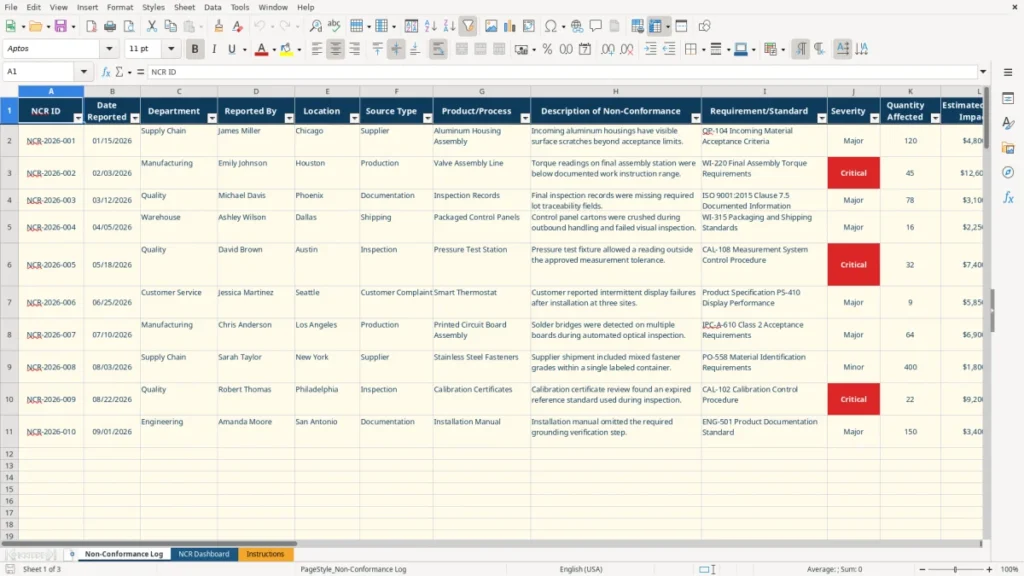
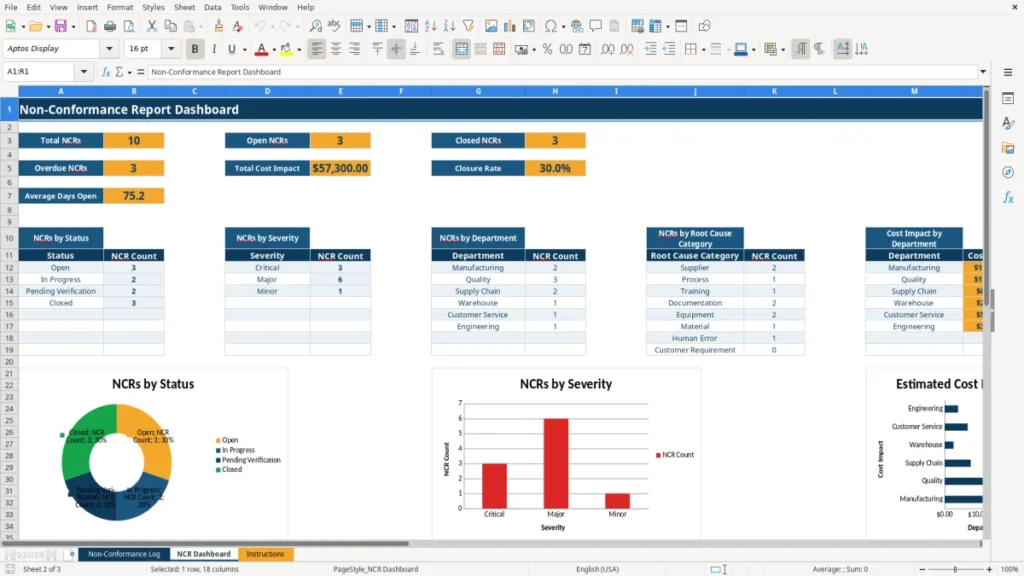
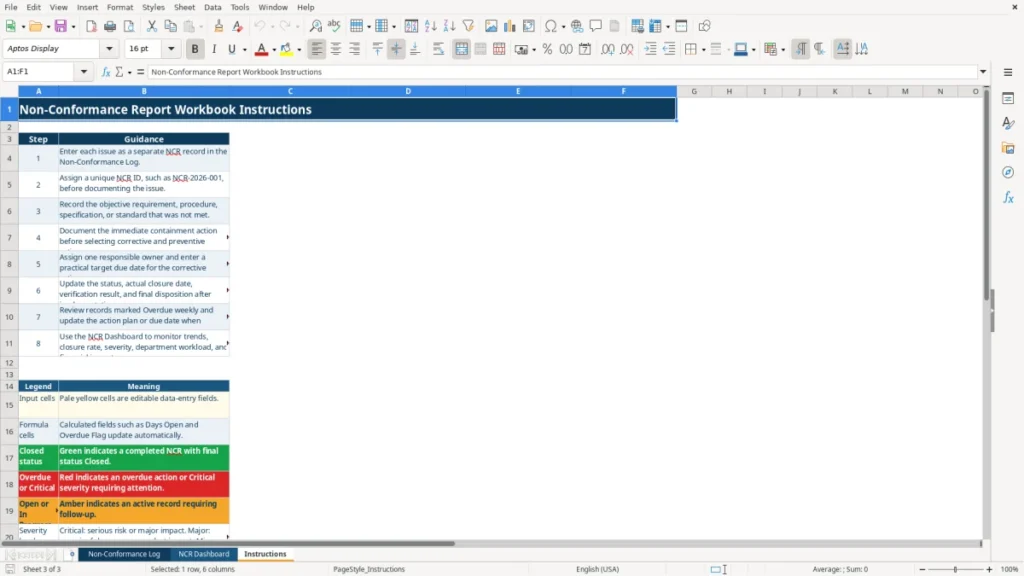
A non-conformance report Excel template records each quality issue, the requirement that was missed, containment, root cause, corrective and preventive actions, ownership, deadlines, verification, and final disposition. This workbook includes a Non-Conformance Log for 100 prepared records, an NCR Dashboard, and an Instructions sheet.
Enter one issue per row in the Non-Conformance Log. It includes fields for the NCR ID, date reported, department, source type, product or process, description, requirement or standard, severity, quantity affected, estimated cost impact, actions, owner, due dates, status, verification result, disposition, and notes.
Image 1 shows the log's wide, filterable layout from NCR ID through Notes. Image 2 shows the dashboard's summary cards, lookup area, analysis tables, and three charts. Image 3 shows the step-by-step guidance and color legend on the Instructions sheet.

The main benefits of this Excel template
- Capture 20 core NCR details in one row, from the objective requirement through final disposition.
- Track 100 prepared operational rows without rebuilding the log structure.
- Calculate Days Open automatically from the reported date and closure date.
- Flag an active NCR as Overdue when its target due date has passed.
- Summarize total NCRs, open records, closed records, overdue items, cost impact, closure rate, and average days open.
- Break down workload by status, severity, department, and root cause category.
- Use controlled dropdowns to keep department, severity, status, verification, and disposition entries consistent.
Step-by-step guide
- Step 1 — Open the Instructions sheet and review the input-cell legend, status colors, severity definitions, and recommended weekly and monthly review cadence.
- Step 2 — Go to the Non-Conformance Log and assign a unique NCR ID, such as NCR-2026-001, for each issue.
- Step 3 — Enter the reported date, department, reporter, location, source type, product or process, objective description, and the requirement or standard that was not met.
- Step 4 — Record the severity, quantity affected, estimated cost impact, and immediate containment action. Use the dropdown lists where provided instead of typing alternate labels.
- Step 5 — Document the root cause category, corrective action, preventive action, responsible owner, and target due date.
- Step 6 — Update status as work progresses. After implementation, enter the actual closure date, verification result, final disposition, and notes.
- Step 7 — Review the NCR Dashboard weekly for overdue actions and monthly for closure rate, severity, department workload, root causes, and cost impact.

What is included
Non-Conformance Log with columns A:Y, frozen header row, and an auto-filter covering rows 1:101.
Dropdown validation for six departments, eight source types, three severity levels, eight root cause categories, four statuses, five verification results, and six final dispositions.
Formula-driven Days Open and Overdue Flag columns that update from reported date, target due date, actual closure date, and status.
NCR Dashboard with formula-based totals for records, open and closed NCRs, overdue NCRs, estimated cost impact, closure rate, and average days open.
NCR Lookup area using the selected NCR ID to return its current status from the log.
Dashboard summaries for status, severity, department, root cause category, and cost impact by department.
Three charts covering NCRs by status, NCRs by severity, and cost impact by department, plus conditional formatting for closed, active, overdue, and critical records.
Who uses an Excel non-conformance report during the workweek
A quality coordinator at a manufacturer may open an NCR as soon as an inspection, supplier receipt, production audit, or customer complaint identifies a requirement failure. The same log works for a contract manufacturer with four employees, a warehouse handling damaged shipments, or a supplier quality engineer tracking repeated defects across multiple locations.
The important distinction is between an observation and a controlled NCR record. A scratched shipment of 120 aluminum housings with an estimated $4,800 impact needs more than an email: you need the supplier source, acceptance criterion, quarantine action, owner, due date, and evidence that the replacement lot passed inspection.
Use the log at the point of discovery
Enter the issue while the facts are available. The first row of the populated example identifies NCR-2026-001, a 01/15/2026 report date, Supply Chain as the department, Supplier as the source type, and QP-104 as the requirement. That level of detail lets a manager distinguish a supplier problem from an internal process failure six months later.
Image 1 shows the operational sequence across the sheet: issue identification appears before containment, root cause, action ownership, and closure evidence. The pale yellow input cells are intended for user entries; Days Open and Overdue Flag are calculated outputs.
Give owners a date, not just an action
An office manager or quality lead should assign one responsible owner and a practical target date during the same review in which the corrective action is approved. For example, an open torque-reading NCR affecting 45 assemblies and $12,600 of estimated impact is easier to manage when calibration, retraining, and verification have a named owner and a 03/05/2026 deadline.
Image 2 is useful for the weekly meeting: the dashboard shows counts by status and severity, department workload, root cause counts, and cost impact. Image 3 explains that open and overdue records should be reviewed weekly, while trends and financial impact should be reviewed with management monthly.

How this NCR spreadsheet supports quality system records
A non-conformance record should connect the observed failure to an objective requirement. In this workbook, the Requirement/Standard column can identify a work instruction, customer specification, inspection criterion, contract term, or an applicable quality-system clause. The populated example cites ISO 9001:2015 Clause 7.5 for missing lot-traceability fields; the workbook does not certify compliance, but it gives you a consistent place to document the evidence.
Keep the record factual and traceable
Use the Date Reported field for when the issue was identified, not when someone finally entered it. Record the affected quantity and estimated cost impact separately: 78 incomplete inspection records and $3,100 are different facts from the corrective-action cost. For a $12,600 production issue, describe the immediate containment before selecting a longer-term action.
The Instructions sheet directs you to enter one issue per record, assign a unique ID, state the unmet requirement, document containment, assign an owner and due date, and later record closure and verification. That sequence supports an audit trail without pretending that an Excel row replaces controlled procedures, approvals, or retained evidence required by your quality system.
Use status and verification as separate controls
Status answers whether the NCR is Open, In Progress, Pending Verification, or Closed. Verification Result answers whether the implemented action is Not Started, In Progress, Pending Verification, Verified Effective, or Verified Ineffective. Keep those fields separate: an action can be implemented but still awaiting evidence, and a closed administrative record should not be treated as proof that a process change was effective.
The formulas use TODAY() to calculate open age while an NCR remains open. If NCR-2026-002 was reported on 02/03/2026 and has no closure date, Days Open advances with the workbook date; once you enter a closure date, the calculation uses the completed interval instead. The overdue test compares the target date with TODAY() and excludes records marked Closed.
Where NCR tracking breaks down and what it costs
The most expensive failure is often not the original defect; it is losing the connection between containment and follow-through. A production line that finds 45 low-torque assemblies may stop work and segregate product, but without an owner and target date, the same controller can remain in service for another week. At $280 of reinspection and rework per affected batch, one missed handoff can add $1,400 before a customer sees the problem.
Vague descriptions create weak corrective actions
Descriptions such as defective parts or paperwork issue do not identify the acceptance boundary. The populated log is stronger because it says the aluminum housings had visible scratches beyond acceptance limits and identifies QP-104. Without the requirement field, a reviewer cannot tell whether the proposed supplier action addresses a real specification or an individual preference.
Another common breakdown is recording only the correction. Replacing 120 scratched housings may restore the shipment, but it does not explain why the supplier passed the material or how recurrence will be monitored. The workbook separates Immediate Containment Action, Corrective Action, and Preventive Action so you can distinguish what protected the customer today from what should reduce recurrence.
Inconsistent labels distort management decisions
If one employee types In progress, another uses Working, and a third leaves the status blank, the dashboard undercounts active work. The controlled list limits status to four choices and severity to Critical, Major, or Minor. That matters when management sees one open NCR on the dashboard but three unresolved items buried under alternate spellings.
Cost data can also mislead when users enter units in one row and dollars in another. The Estimated Cost Impact column is formatted as currency, so enter 4800 for $4,800 rather than 120 units or a text note. The dashboard's SUM then produces a meaningful total; a contractor with four departments and $31,500 of logged impact can see where the financial exposure sits instead of relying on rough estimates from email threads.
Closing without verification hides recurrence
Marking an item Closed immediately after an action is assigned is a control failure. If the torque controller was calibrated but the next 20 units were never checked, the record should remain Pending Verification. A false closure rate of 90% looks good until the next customer complaint proves that the action was ineffective.
How to make the NCR workbook part of your quality routine
Make the Non-Conformance Log part of an existing meeting rather than a separate administrative task. During the daily production or receiving review, add new records and containment actions; during the Friday quality meeting, filter the log for Open, In Progress, and Pending Verification items and read the Overdue Flag column before discussing new work.
Use a fixed review rhythm
- Every discovery: assign the NCR ID, record the requirement, and document containment before the issue leaves the work area.
- Every week: review every Overdue record, confirm the owner, and enter a realistic revised target date only when the action plan genuinely changed.
- Every month: compare the dashboard's 31 NCRs, $42,000 of hypothetical cost impact, closure rate, and average Days Open against the prior review.
- At management review: discuss the department and root-cause summaries rather than reading 100 rows one by one.
Keep input quality high by selecting values from the dropdowns and using consistent NCR IDs such as NCR-2026-001. Avoid overwriting the formula cells in Days Open and Overdue Flag; if a formula disappears, copy it from the row above and confirm that the row references point to the correct record.
Know when the file has reached its limit
This workbook has 100 prepared log rows, not an unlimited database. It is a good fit for a small quality team that can review one shared file, but move to dedicated quality-management software when several people need simultaneous editing, attachments and approvals must be controlled, or you need more than 100 active or historical rows without manual expansion.
Back up the file after each monthly management review and keep supporting inspection records, photographs, supplier responses, and verification evidence in your established document-control location. The spreadsheet is the tracking layer; it should point your team toward the evidence, not become the only evidence.
Frequently asked questions about this template
The workbook contains three sheets: Non-Conformance Log, NCR Dashboard, and Instructions. The log has 100 prepared rows, input columns for issue and action details, calculated Days Open and Overdue Flag fields, dropdown lists, filtering, and conditional formatting. The dashboard summarizes status, severity, department, root cause, closure rate, average days open, and cost impact.
The Non-Conformance Log is prepared for rows 2 through 101, giving you 100 operational rows. The file does not contain an Excel table or unlimited database capacity, so expand the formulas, validation ranges, and dashboard references carefully if you need more than 100 records.
Days Open calculates the days from Date Reported through Actual Closure Date. If the NCR is still open, it uses TODAY(). Overdue Flag shows Overdue when the target due date is before today and the status is not Closed; otherwise it shows On Track when a target date is present.
Status choices are Open, In Progress, Pending Verification, and Closed. Separate dropdowns cover severity, department, source type, root cause category, verification result, and final disposition, helping you keep dashboard counts consistent.
Yes. Enter the estimated dollar amount in Estimated Cost Impact for each NCR. The dashboard uses SUM to show total cost impact and SUMIF to summarize cost by department; it does not calculate the estimate from quantity or automatically separate rework, scrap, labor, or replacement costs.
No. It provides a structured record for the issue, requirement or standard, containment, corrective action, preventive action, verification, and disposition. Your quality system still determines approval, evidence retention, document control, and whether an NCR is adequately closed.
Meet the makers