
Project & Planning


List Excel - Free Template
Track tasks, owners, priorities, dates, progress, hours, and overdue work with a practical Excel list template for teams and projects.
2026-07-18
209 downloads
4.8/5
Download template
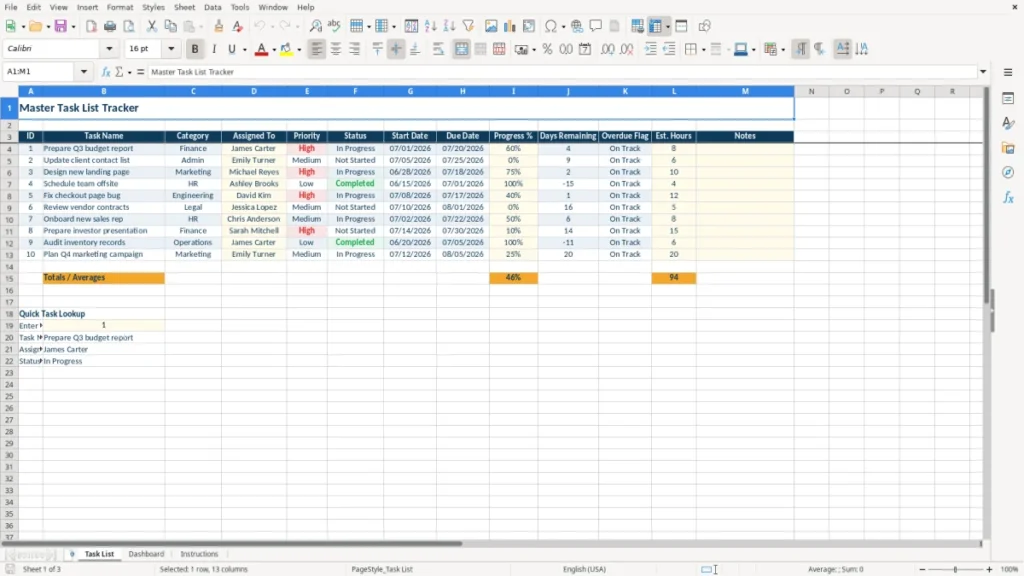
A list Excel template is a ready-made worksheet for recording tasks, owners, priorities, deadlines, progress, estimated hours, and notes in one place. This file includes a Task List sheet with 13 tracking columns, a Dashboard for a quick workload view, and an Instructions sheet.
Use the Task List to replace scattered sticky notes, emails, and separate personal lists. Each row represents one task, from preparing a Q3 budget report to fixing a checkout bug, with fields for category, assignee, status, dates, and completion percentage.
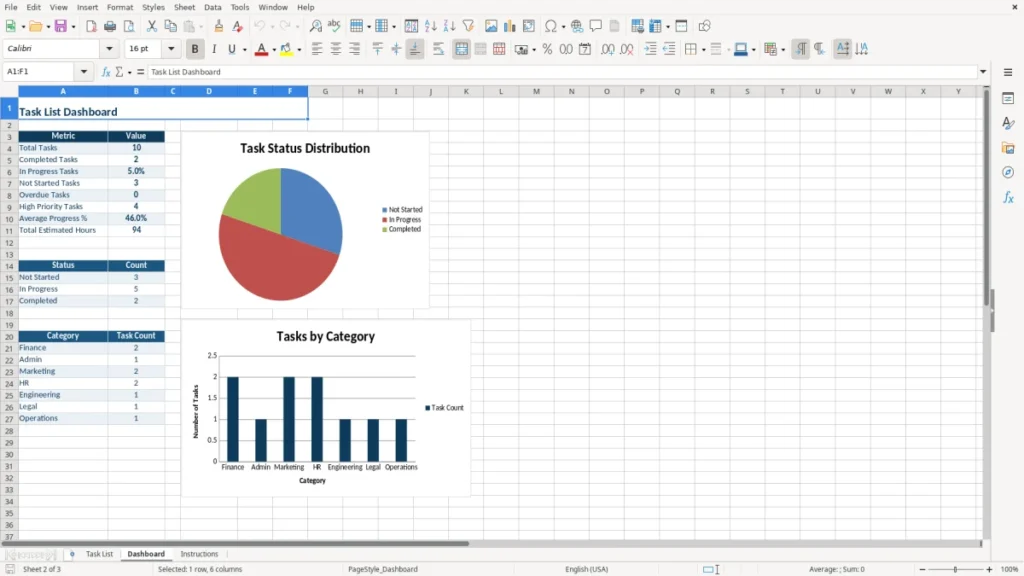
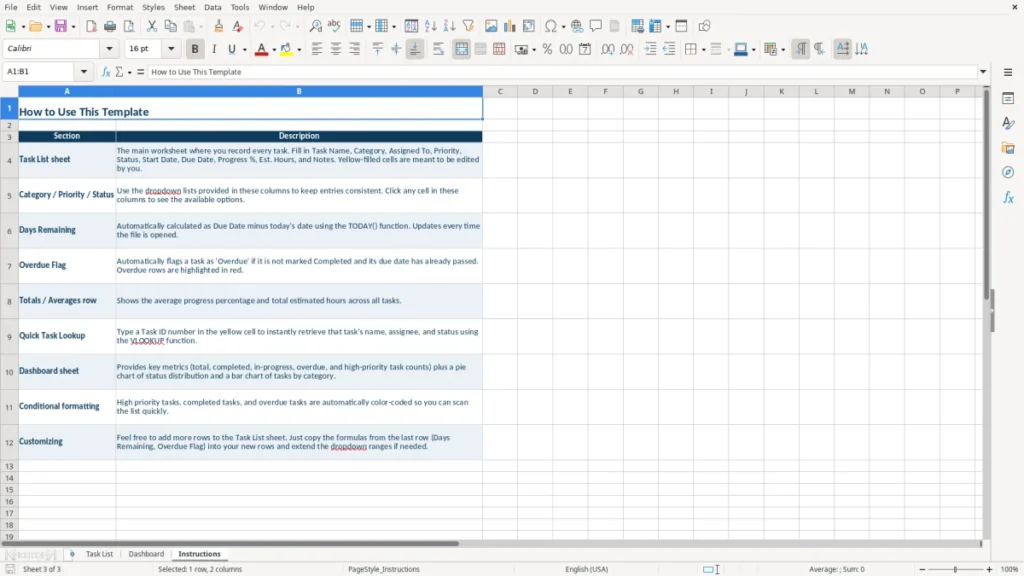
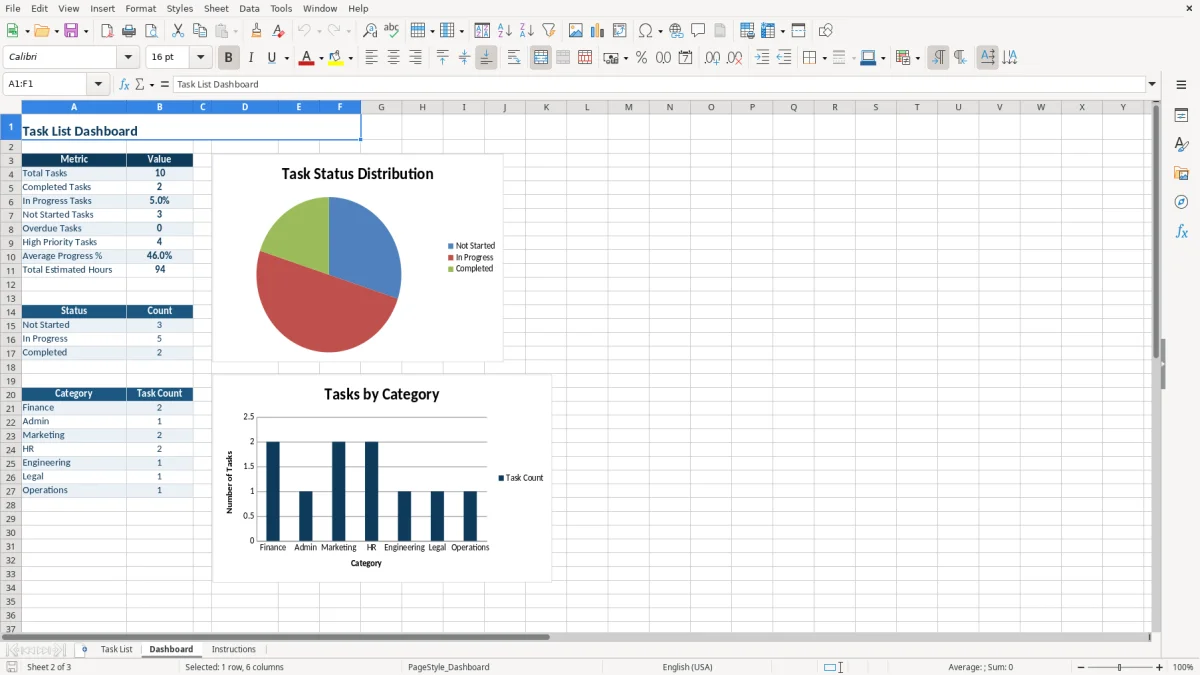
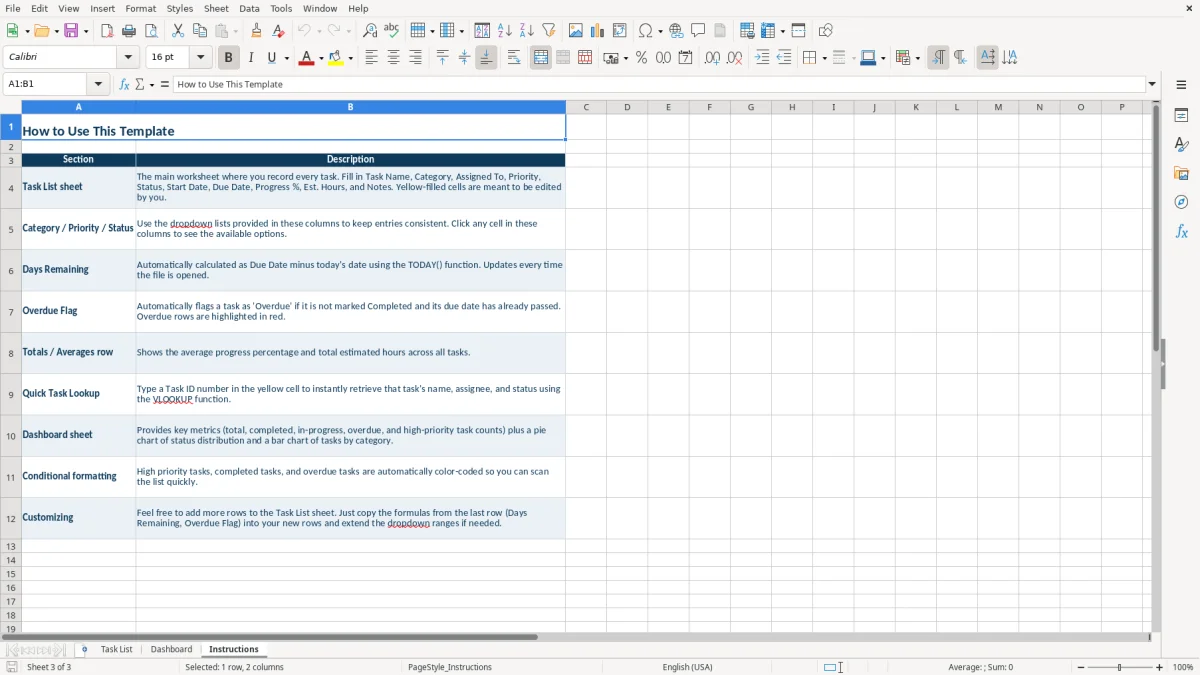
The layout is built for a small team, department, household project, or event plan. Image 1 shows the main tracker, image 2 shows the summary dashboard, and image 3 explains how to work with the file.
The main benefits of this Excel template
- Keep task names, categories, assignees, priorities, and statuses in one 13-column worksheet.
- See which work is unfinished by comparing the due date, progress percentage, and overdue flag.
- Assign clear ownership so a task such as a budget report or website fix has one visible responsible person.
- Sort a project list by High, Medium, or Low priority before a weekly planning meeting.
- Track estimated hours beside each task to identify a workload that exceeds the available team capacity.
- Use the Dashboard to review task activity without manually building a separate summary.
- Add notes directly to the relevant row instead of searching through email threads for project context.
Step-by-step guide
- Open the Task List sheet and review the existing sample rows before replacing them with your own work.
- Enter one task per row, using the Task Name, Category, Assigned To, Priority, and Status columns to describe the work clearly.
- Add the Start Date and Due Date in MM/DD/YYYY format, then enter Progress % as a value from 0 to 100.
- Fill in Est. Hours and use Notes for a dependency, client instruction, meeting detail, or next action.
- Review Days Remaining and Overdue Flag during your weekly planning session so late work is visible before it affects the next deadline.
- Open the Dashboard after updating the list to review the summarized task picture, then use the Instructions sheet when you need a reminder about the layout.
What is included
Task List sheet with ID, Task Name, Category, Assigned To, Priority, Status, Start Date, Due Date, Progress %, Days Remaining, Overdue Flag, Est. Hours, and Notes.
Merged title area labeled Master Task List Tracker with a navy-and-amber professional color scheme.
Formatted header row with centered labels, white text, borders, and consistent column styling.
Progress tracking from 0% to 100%, allowing Not Started, In Progress, and Completed work to be distinguished.
Date fields for both the planned start and required completion date.
Dedicated Days Remaining and Overdue Flag columns for deadline monitoring.
Separate Dashboard and Instructions sheets to support review and day-to-day use.
Who uses a list Excel template during the workweek
A list Excel template is useful when you have more work than can be managed reliably from memory but do not need full project-management software. An office manager at a four-person contractor may use it for permit applications, material orders, site visits, and customer callbacks. A marketing coordinator may track 25 campaign tasks across design, copy, email, and website work.
The Task List sheet is designed around one task per row. Image 1 shows the 13-column structure: ID, Task Name, Category, Assigned To, Priority, Status, Start Date, Due Date, Progress %, Days Remaining, Overdue Flag, Est. Hours, and Notes. That structure gives you both the action item and the management information needed to discuss it.
Small teams with recurring deadlines
For a team of four employees, entering 30 active tasks takes less than 20 minutes if each task has a specific verb and a named owner. Instead of writing Website work, enter Fix checkout page bug, assign it to David, mark it High priority, and set a due date of 07/17/2026. The row becomes useful during the Monday meeting because the owner, deadline, and progress are visible together.
Households, volunteers, and project leads
You can also use the file for a home renovation, a nonprofit fundraiser, or a youth sports season. A treasurer might list 18 sponsor follow-ups and uniform invoices; a household might list 12 painting, repair, and moving tasks. Categories keep unrelated work separate, while Notes preserve details such as a vendor phone number or a required approval.
The Dashboard, shown in image 2, gives you a separate review point instead of forcing you to read every row. The Instructions sheet in image 3 is useful when another person takes over the file or when you return to it after several weeks.
The Dashboard’s separate review point also sets up a project status report when those categories need to be rolled into one higher-level view.
How the task fields support practical planning
This template is not a legal or tax form, but its fields support the control practices used in ordinary US business administration. A task list should identify what must be done, who owns it, when work starts, when it is due, and how far it has progressed. Without those fields, a list becomes a collection of vague reminders rather than a scheduling tool.
Use dates as operating commitments
Enter Start Date and Due Date in MM/DD/YYYY format so the schedule can be read consistently by a US team. If a contractor has a 10-day permit task followed by a 5-day material-order task, separate those into two rows rather than hiding both deadlines inside one note. The dates then show whether the second task can begin on time.
Days Remaining and Overdue Flag are especially useful at the daily review. A task due on 07/20/2026 with eight days remaining is not equivalent to a task due on 07/01/2026 with four days remaining; the latter needs immediate attention even if the person assigned to it is busy with newer work.
Use priority and status together
Priority answers how important the task is, while Status answers where it stands. A High-priority task marked Not Started is a management concern; a Low-priority task marked Completed is not. A team with 40 rows should review all High-priority unfinished tasks first, then examine Medium items that have less than three days remaining.
Progress % adds a numerical measure. If estimated hours are 12 and progress is 50%, you have roughly six hours of planned work remaining, although the estimate should be updated when new requirements appear. My preference is to keep one row for one deliverable: split a 20-hour project into smaller rows when different people or deadlines are involved.
The Dashboard is best used for review, not as a second place to enter data. Enter the detail on Task List, then use the summary view to decide what needs attention during the next meeting.
The summary view naturally leads into a workload planning chart when you need to see how those remaining hours are distributed across the team.
Where a task list breaks down and what it costs
The most expensive task-list errors are usually small data-entry decisions repeated across many rows. A team that leaves Assigned To blank on 10 tasks may spend 30 minutes in every weekly meeting deciding who owns them. Over a 12-week project, that is six hours spent rediscovering responsibility instead of completing the work.
Vague rows hide unfinished work
Rows such as Marketing, Admin, or Website are not actionable. If a coordinator has 15 hours available this week and sees a row estimated at 20 hours, the list has to show the next deliverable before capacity can be managed. Replace a broad label with a concrete action such as Draft three email subject lines, estimated at two hours, and assign it to one person.
Another common failure is marking a task Completed at 100% while leaving the due date or Notes field blank. A client-facing deliverable may be technically finished but still require approval, payment setup, or a handoff. Without that note, the team assumes the work is closed and may miss a final step worth $500 in billable revenue.
Dates and percentages get out of sync
A task due on 07/17/2026 with 40% progress should be discussed differently from a task due on 07/25/2026 with the same progress. If you update Progress % only at month-end, the Dashboard cannot reflect the real position of the work. Weekly updates are the minimum practical frequency for a live project; daily updates make sense for a short launch or event.
Do not create duplicate rows when a deadline changes. Update the existing Due Date and explain the reason in Notes, such as client delay or missing material. Duplicate entries create two apparent obligations and can lead to double work, duplicate emails, or a false completion rate.
Finally, do not treat Estimated Hours as a promise. A five-hour estimate that becomes 11 hours is useful information; hiding the overrun prevents the next schedule from improving. Keep the original estimate visible and use Notes to explain the difference.
How to make the spreadsheet part of your weekly routine
A task list works when updating it is attached to a meeting or operating event that already happens. For a small office, schedule a 15-minute review immediately before the Monday staff meeting. For a contractor, update the file after the Friday job-cost review, when the supervisor already knows which permits, material orders, and customer callbacks moved.
Use a fixed update sequence
Have the task owner update Status and Progress % first, then the project lead checks Due Date, Days Remaining, and Overdue Flag. This order prevents a manager from changing dates to make a late task look healthy before the actual progress is recorded.
- Review High-priority tasks with Status of Not Started or In Progress.
- Check every task with fewer than three days remaining.
- Compare Est. Hours with each person's available hours for the week.
- Move completed work out of the active discussion only after the final note or handoff is recorded.
Keep the input clean
Use the same category names every time: Finance, Admin, Marketing, HR, or Engineering, rather than five variations of administration. Keep dates in the same format and enter Progress % as a number from 0 to 100. If you add your own validation rules, use dropdowns for Priority and Status so a filter does not split In Progress into multiple spellings.
Save a dated backup at month-end, such as TaskList_2026-07-31.xlsx, before clearing completed rows. Once the file regularly exceeds about 500 active and historical rows, multiple people edit it simultaneously, or you need dependencies, permissions, and automated reminders, move to project software. Excel remains the better choice for a small team that needs a transparent list without a monthly subscription.
Frequently asked questions about this template
The workbook includes Task List, Dashboard, and Instructions sheets. Task List has 13 columns covering task identity, ownership, priority, status, dates, progress, deadline monitoring, estimated hours, and notes.
Yes. Remove the sample business tasks and enter home repairs, moving jobs, school deadlines, volunteer duties, or event planning tasks. The Assigned To and Est. Hours columns are still useful when several household members share the work.
Enter a number from 0 to 100. Use 0 for Not Started, 100 for Completed, and an intermediate value such as 60 when the work is underway. Keep Status and Progress % consistent so the list is easy to interpret.
Use the Overdue Flag as a deadline warning alongside Due Date and Status. Review it during each planning session, then update the task's status, date, or note rather than creating a duplicate row.
Yes, although you should designate one person to maintain the master file. Each employee can update their assigned rows, while a project lead reviews ownership, priority, dates, and estimated hours during the weekly meeting.
Excel is practical for a small team and a few hundred active or historical rows. Move to dedicated software when you need automatic reminders, task dependencies, user permissions, an audit trail, or frequent simultaneous editing by many users.
Meet the makers