
Personal Finance


Food Planner Excel - Free Template
Plan weekly meals, servings, calories, prep time, and meal costs with a practical Excel food planner for households and busy cooks.
2026-07-27
285 downloads
4.8/5
Download template
This food planner Excel template organizes a week of breakfasts, dinners, recipes, servings, calories, preparation time, and estimated meal costs in one workbook. It includes Meal Plan, Grocery List, Dashboard, and Instructions sheets so you can plan meals, shop from the plan, and review your week.
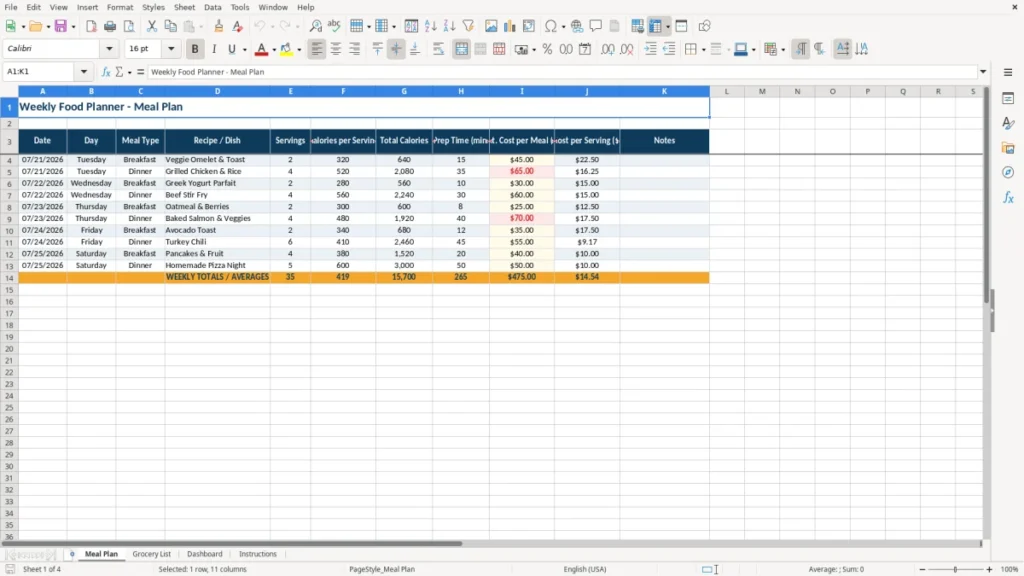
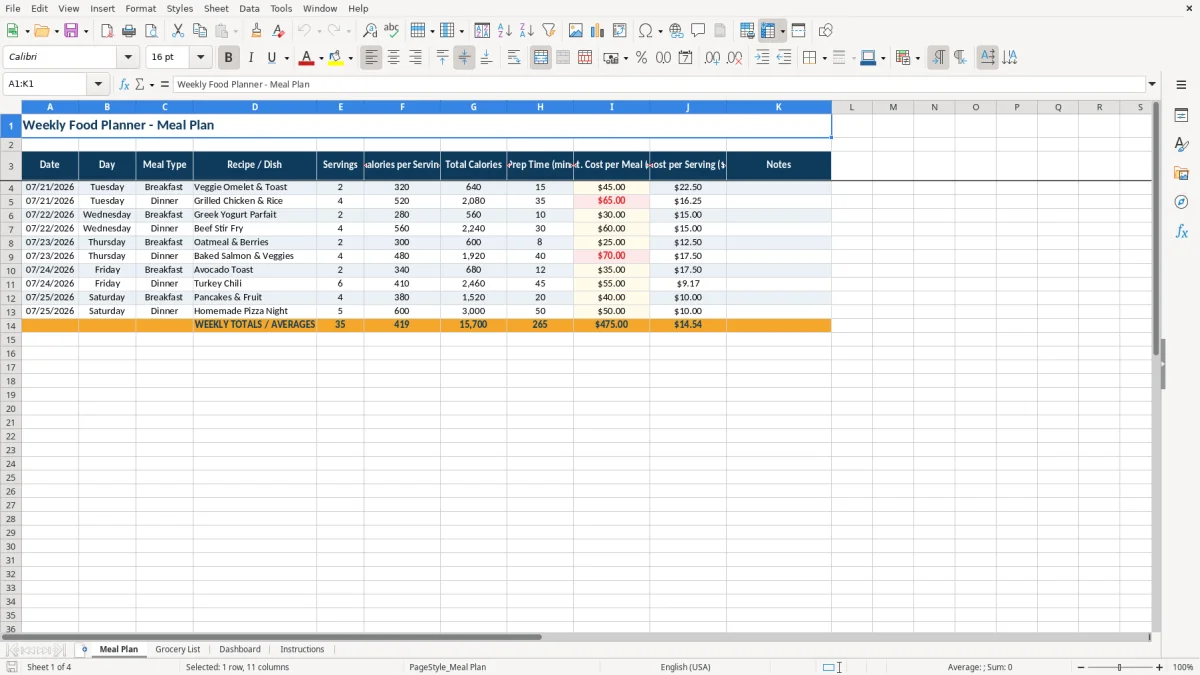
The Meal Plan sheet uses columns for date, day, meal type, recipe or dish, servings, calories per serving, total calories, prep time, estimated meal cost, cost per serving, and notes. Image 1 shows the navy header row and pale input areas; the sample week includes meals such as grilled chicken and rice, turkey chili, and oatmeal with berries.
Use the Grocery List to organize the shopping trip, the Dashboard to review the plan visually, and the Instructions sheet to understand the workbook before you begin. The layout works for a household, a meal-prep routine, or a parent coordinating dinners for a busy family.
The main benefits of this Excel template
- Plan multiple meals by date, day, and meal type instead of keeping notes in separate apps.
- Compare servings and calories per serving while seeing the planned total calories for each meal.
- Estimate the cost of each meal and the cost per serving; a $65 dinner for four works out to $16.25 per serving.
- See prep time before committing to a recipe; a 45-minute dinner is easier to schedule when it is visible beside the dish.
- Carry recipe-specific notes directly beside the meal, including substitutions, leftovers, or preparation reminders.
- Use the Grocery List sheet to turn the weekly plan into a shopping reference instead of rebuilding the list from memory.
- Review the week's food plan on the Dashboard and make changes before shopping or starting meal preparation.
Step-by-step guide
- Open the Instructions sheet first and review the purpose of each tab. Keep the workbook structure intact so the connected planning views remain easy to follow.
- Go to Meal Plan and enter the date, day, meal type, and recipe or dish for each planned meal. Use one row for each meal rather than combining breakfast and dinner in one cell.
- Enter the number of servings, calories per serving, prep time in minutes, and estimated cost for the meal. For example, enter 4 servings and a $65.00 estimated meal cost for a family dinner.
- Review total calories and cost per serving in the Meal Plan row. A $65.00 meal for 4 servings equals $16.25 per serving, which gives you a useful comparison with other recipes.
- Add substitutions, leftover plans, or preparation reminders in Notes. This is the right place to record details such as use half the chicken for tomorrow's lunch.
- Open Grocery List and use the weekly plan to prepare your shopping list. Check quantities and pantry items before purchasing so the list reflects what you actually need.
- Review Dashboard before the week starts, then return to Meal Plan when a recipe, serving count, or dinner date changes. Use Instructions again if you need help interpreting a sheet.
What is included
Meal Plan sheet with Date, Day, Meal Type, Recipe / Dish, Servings, calories, prep time, cost, and Notes columns.
Separate fields for Calories per Serving and Total Calories so portion planning is clearer.
Estimated meal cost and Cost per Serving fields for comparing inexpensive and higher-cost recipes.
Dedicated Grocery List sheet for preparing the shopping trip from the weekly meal plan.
Dashboard sheet for a visual review of the planned food schedule and key weekly information.
Instructions sheet that explains how to work with the template.
Readable formatting with navy headers, amber accents, bordered cells, centered headings, and pale input areas.
Who uses a food planner Excel sheet during the week
A food planner Excel sheet is useful when meals need to fit around work, school, sports, and a fixed grocery budget. A two-income household may plan seven breakfasts, five dinners, and several packed lunches on Sunday because the week becomes difficult once Monday's schedule starts. A parent with two children can also see which nights require a 10-minute meal rather than discovering the conflict at 5:30 p.m.
The Meal Plan sheet is built around one row per meal. Its columns identify the Date, Day, Meal Type, Recipe / Dish, Servings, Calories per Serving, Total Calories, Prep Time (min), Est. Cost per Meal ($), Cost per Serving ($), and Notes. Image 1 shows this structure with a dark navy header and centered column labels, making the weekly list easier to scan than a paragraph of recipes.
Planning around real schedules
Consider a household planning Tuesday dinner for four people. Grilled Chicken & Rice is entered with 4 servings, 520 calories per serving, 35 minutes of prep time, and a $65.00 estimated meal cost. The useful comparison is not just the $65 total: the meal costs $16.25 per serving and produces 2,080 planned calories.
A freelancer working from home might use the same sheet differently, entering quick breakfasts and larger batch dinners. A household with a $175 weekly grocery target can use the estimated meal costs to spot a $70 salmon dinner before the shopping trip and balance it with lower-cost oatmeal, chili, or rice-based meals.
What the other sheets contribute
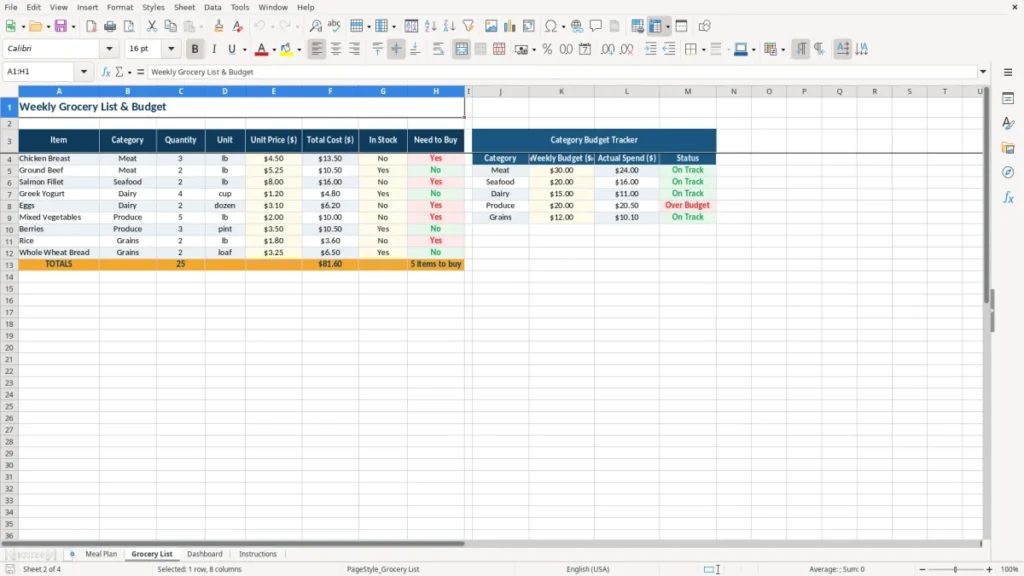
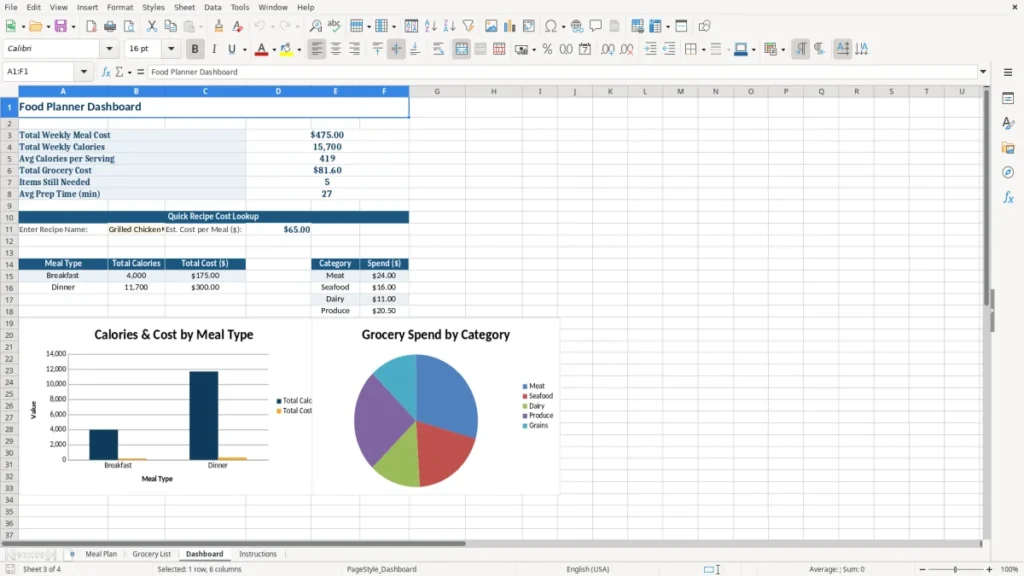
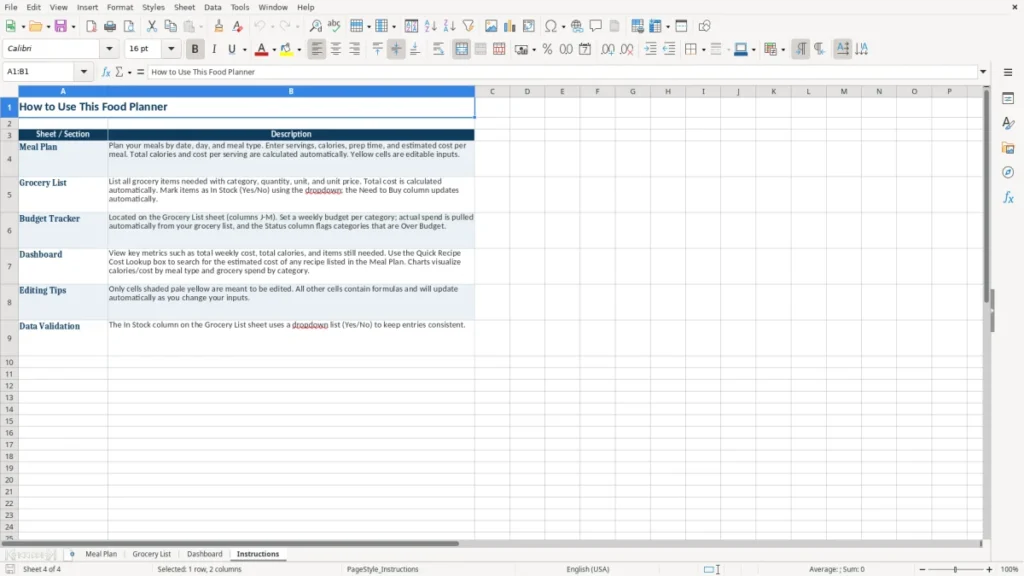
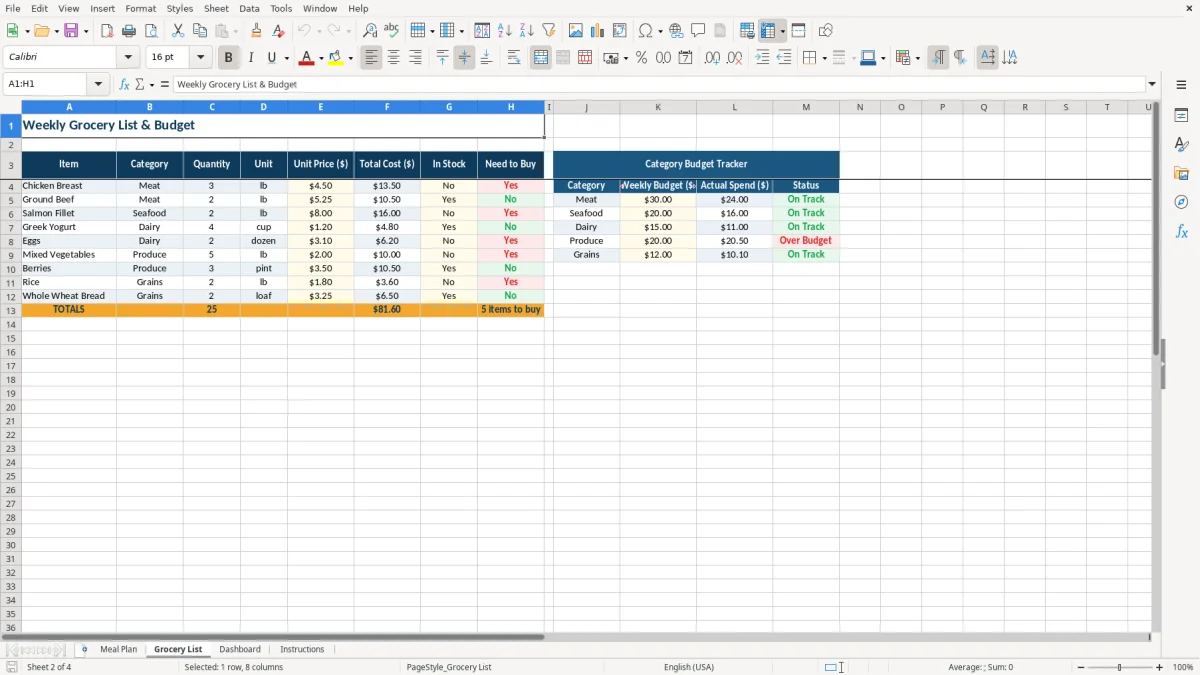
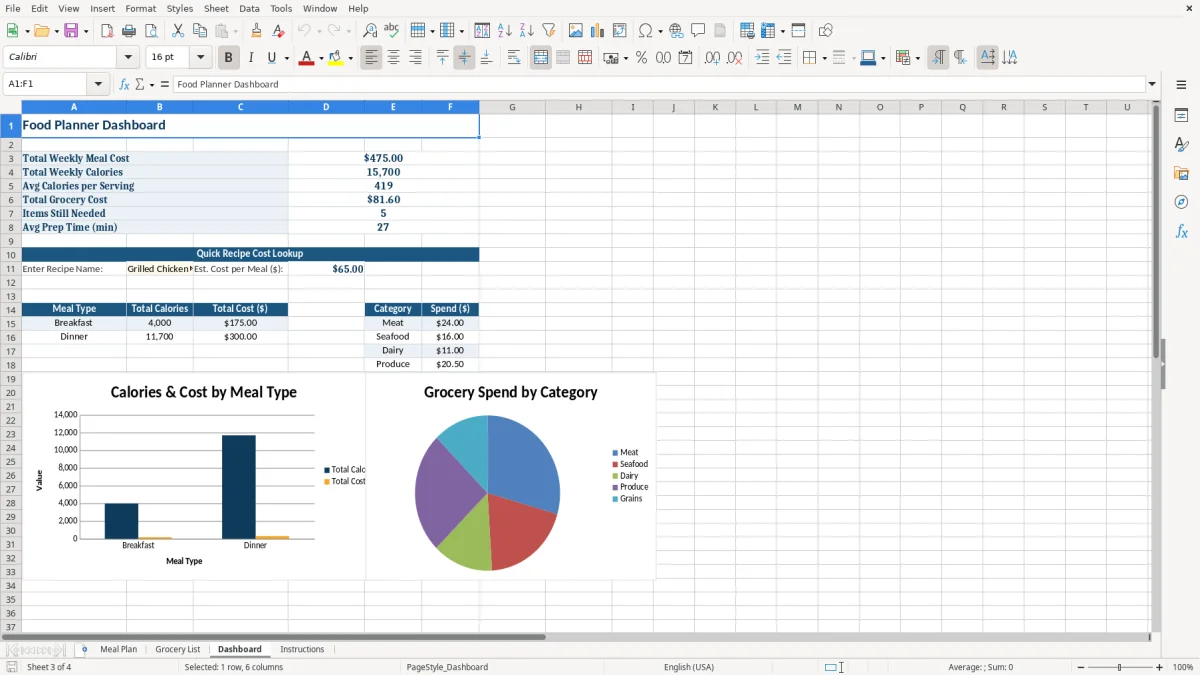
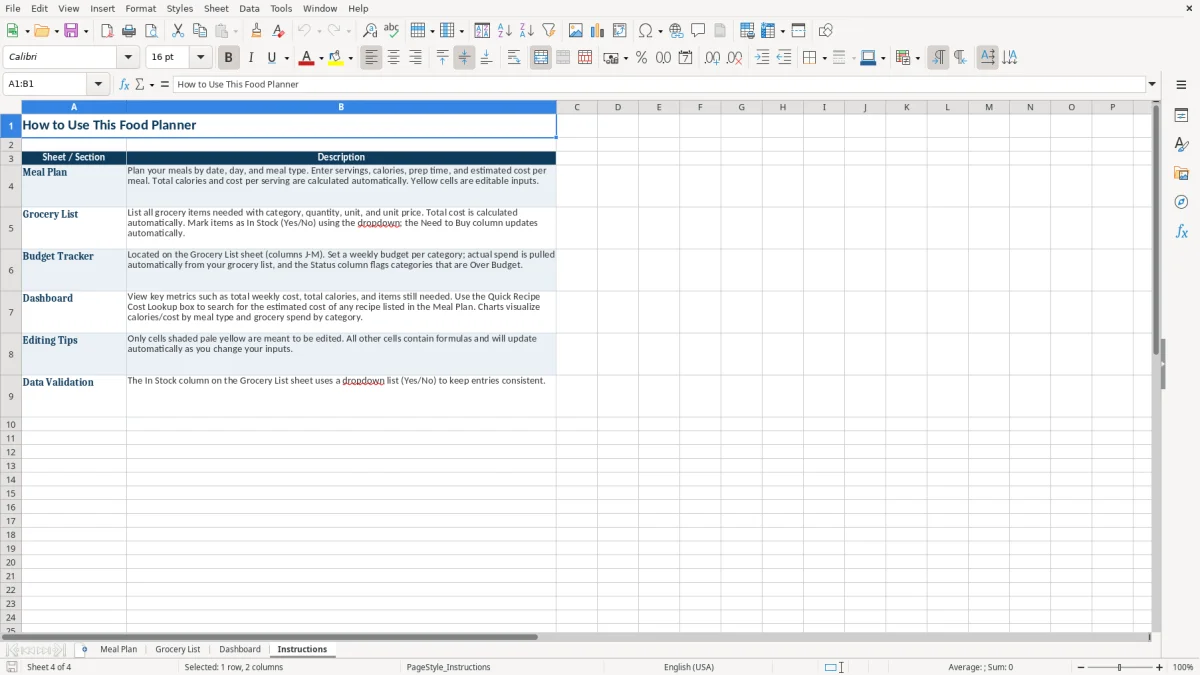
Image 2 shows the Grocery List sheet, which gives the shopping part of the plan its own workspace. Image 3 shows the Dashboard for a faster weekly review, while image 4 shows Instructions for orienting yourself before entering meals. The practical workflow is to plan in Meal Plan, shop from Grocery List, review Dashboard, and consult Instructions when needed.
That same weekly review can also feed a facilities budget sheet when the next step is tracking shared costs across maintenance, supplies, and recurring service items.
How calorie and food-cost planning should be handled
Food planning is not the same as a medical nutrition plan. Calories in this workbook are planning estimates, not a diagnosis or a substitute for guidance from a registered dietitian. Nutrition labels and recipe yields change with brand, portion size, cooking method, and substitutions, so treat the figures as decision-making inputs rather than laboratory measurements.
The key distinction is between calories per serving and total calories. If a recipe has 520 calories per serving and you plan 4 servings, the weekly row should reflect 2,080 total calories. If the estimated meal cost is $65.00, the cost per serving is $65.00 ÷ 4 = $16.25. Keeping those measures separate prevents a family meal from looking cheaper or lighter simply because the total was not allocated across portions.
Use consistent recipe yields
Pick one definition of a serving and use it consistently. If a pot of chili costs $55.00 and produces 6 servings, its planned cost is $9.17 per serving after rounding to the nearest cent. If you later stretch the pot to 8 servings, update servings and calories per serving rather than leaving the original figures beside a different yield.
For household budgeting, estimated cost is more useful when it includes the ingredients actually consumed. A $4.00 bottle of oil used across four meals should not be charged entirely to one dinner; assign roughly $1.00 per meal if that matches your kitchen records. The spreadsheet helps compare meals, but it does not replace package-level price tracking.
Make the numbers comparable
Record prep time in minutes, not descriptions such as quick or long. A 45-minute dinner and a 10-minute breakfast can then be compared when arranging a Tuesday workday. Use the same approach for leftovers: either record the original batch as one meal or record the later serving separately, but do not count the same portion twice.
The Dashboard is most useful after these definitions stay consistent for the full week. Image 3 provides the visual review point; the Meal Plan remains the detailed source for each date, recipe, serving count, calorie estimate, and cost.
Where a weekly food plan breaks down in practice
The first failure is entering a recipe without a yield. A $48.00 casserole may look reasonable until you realize it produces only 3 servings, or $16.00 per serving. If you enter 6 servings by mistake, the displayed comparison becomes $8.00 per serving and can distort the entire grocery decision.
Portions and leftovers get counted twice
Families often list a six-serving dinner and then add three leftover lunches as if they were new food. That creates nine planned servings from six actual servings. A household that repeats this twice a week can plan for six extra portions without buying the right ingredients, then run short by Friday.
Another common error is treating calories per serving as the total for the recipe. Four servings at 400 calories each equal 1,600 total calories, not 400. The Meal Plan columns place both values side by side, but you still need to check the recipe yield whenever you change the number of servings.
Costs become fiction when substitutions are ignored
A recipe may be entered at $30.00, but a substitution such as salmon for canned tuna can add $18.00 to the meal. If the cost field is not updated, a weekly budget of $150 may actually become $168. A $18 variance is enough to eliminate several low-cost breakfasts or a gallon of milk from a tightly managed shopping trip.
Pantry items cause a different problem. Recording a full $12.00 spice container against one dinner overstates that meal, while recording nothing for an ingredient purchased every week understates the food budget. Use Notes to flag pantry purchases and apply a consistent cost approach, such as assigning the portion used or recording the full purchase when cash spending is the priority.
Prep time is easy to underestimate
Recipe websites may show 20 minutes of cooking but exclude chopping, thawing, cleanup, or rice preparation. A contractor who gets home at 6:00 p.m. and selects three supposed 20-minute dinners may still face 90 minutes of kitchen work. Entering realistic minutes is more valuable than optimistic times because the schedule has to work on a Tuesday night, not just on paper.
How to make the food planner a Sunday routine
Attach the workbook to a routine that already happens. Sunday afternoon works for many households because you can review the next seven days before the grocery trip; a household that shops on Wednesday can use the same process that evening. Set aside 15 minutes to check appointments, select recipes, and update servings before opening the store's website or leaving home.
A repeatable weekly process
- Start with the calendar: mark nights with less than 30 minutes available and reserve simple meals for them.
- Copy useful recipes from the prior week by entering a new date and checking the serving yield before changing the cost.
- Use Notes for one action only, such as thaw chicken, pack leftovers, or buy fresh herbs.
- Review Grocery List after changing a recipe; do not shop from an old printed list after a serving count changes.
For example, if Tuesday's dinner changes from a 4-serving $65.00 dish to a 6-serving $55.00 chili, the cost per serving falls from $16.25 to about $9.17. Make that change before shopping, then use the Dashboard shown in image 3 to confirm that the weekly plan still looks balanced.
Keep input clean
Enter dates consistently as MM/DD/YYYY and keep meal types recognizable, such as Breakfast, Lunch, or Dinner. Avoid putting several unrelated recipes in one Recipe / Dish cell because that makes the weekly plan harder to review and the Grocery List harder to reconcile.
Print or save the Grocery List only after the final review. Image 2 is the natural shopping reference, while image 4 explains the workbook when another household member needs to take over. The template is suitable for a few weeks of planning; move to dedicated meal-planning or nutrition software when you need barcode scanning, automatic ingredient scaling across hundreds of recipes, multiple users, or verified dietary calculations.
Frequently asked questions about this template
The workbook contains four sheets: Meal Plan, Grocery List, Dashboard, and Instructions. Meal Plan includes date, day, meal type, recipe or dish, servings, calories, prep time, estimated meal cost, cost per serving, and notes.
Yes. Enter the number of servings needed for each meal and use the cost per serving to compare recipes. For example, a $65.00 dinner for 4 people works out to $16.25 per serving.
Divide the estimated meal cost by the planned servings. A $55.00 meal that produces 6 servings costs about $9.17 per serving.
The Meal Plan layout includes Calories per Serving and Total Calories fields for meal planning. Enter estimates based on your recipe or food labels, and do not treat the figures as medical nutrition advice.
Use Notes for practical reminders such as thawing ingredients, preparing leftovers, making a substitution, packing lunch, or using an ingredient already in your pantry.
Update it once a week before grocery shopping, then make changes when plans or serving counts change. A 15-minute Sunday review is enough for many households to plan the next seven days.
Meet the makers