
Project & Planning


Meeting Tracker Excel - Free Template
Track meeting details, action items, follow-up deadlines, costs, and team activity with a practical Excel workbook for small businesses.
2026-08-26
375 downloads
4.8/5
Download template
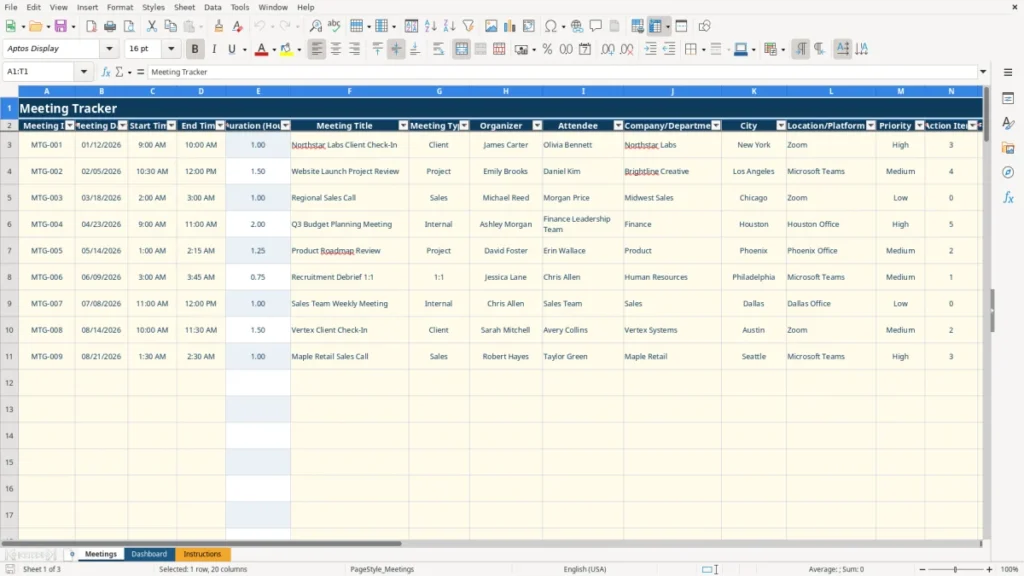
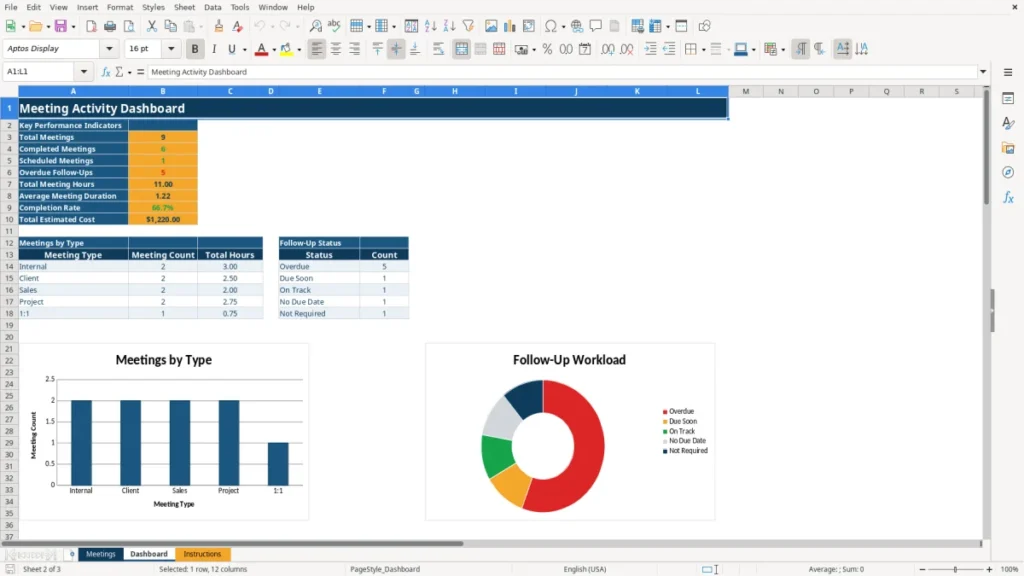
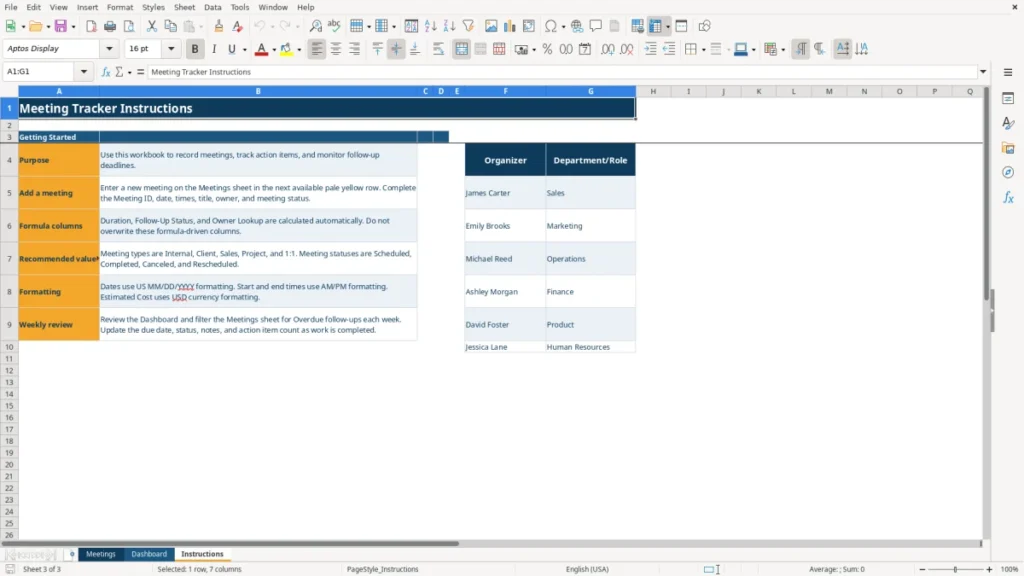
A meeting tracker Excel template records meeting dates, times, attendees, locations, action items, follow-up deadlines, status, notes, and estimated costs. This workbook includes a Meetings input sheet, a Dashboard with calculated activity metrics and charts, and an Instructions sheet explaining the workflow.
Use the Meetings sheet to log each appointment in the prepared rows. Duration, follow-up status, and owner information are calculated automatically, while the Dashboard summarizes meeting volume, hours, completion rate, estimated cost, meeting type, and outstanding follow-ups.
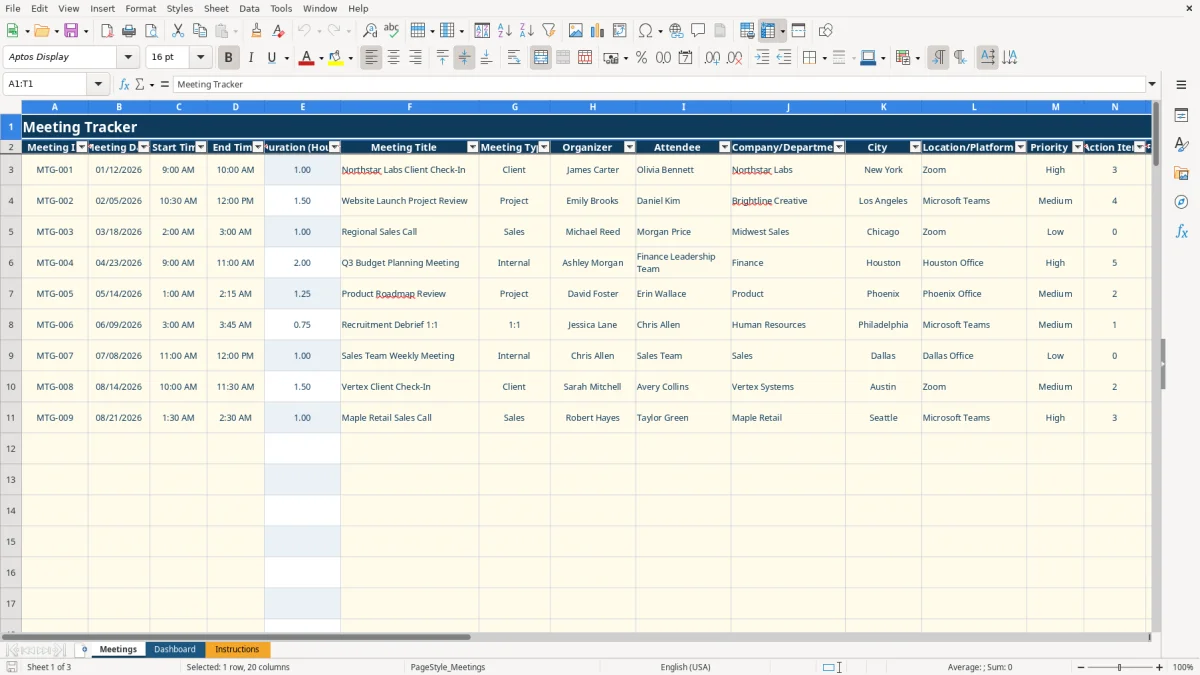
The main benefits of this Excel template
- Keep up to 102 prepared meeting-entry rows organized with IDs, dates, times, titles, participants, and notes.
- Calculate meeting duration automatically from start and end times, such as 09:00 AM to 10:30 AM producing 1.50 hours.
- See overdue and due-soon follow-ups without manually checking every due date.
- Measure total meeting hours, average duration, completion rate, and estimated cost from one Dashboard.
- Separate Internal, Client, Sales, Project, and 1:1 meetings for useful workload comparisons.
- Use controlled dropdowns for meeting type, priority, and meeting status to keep reporting values consistent.
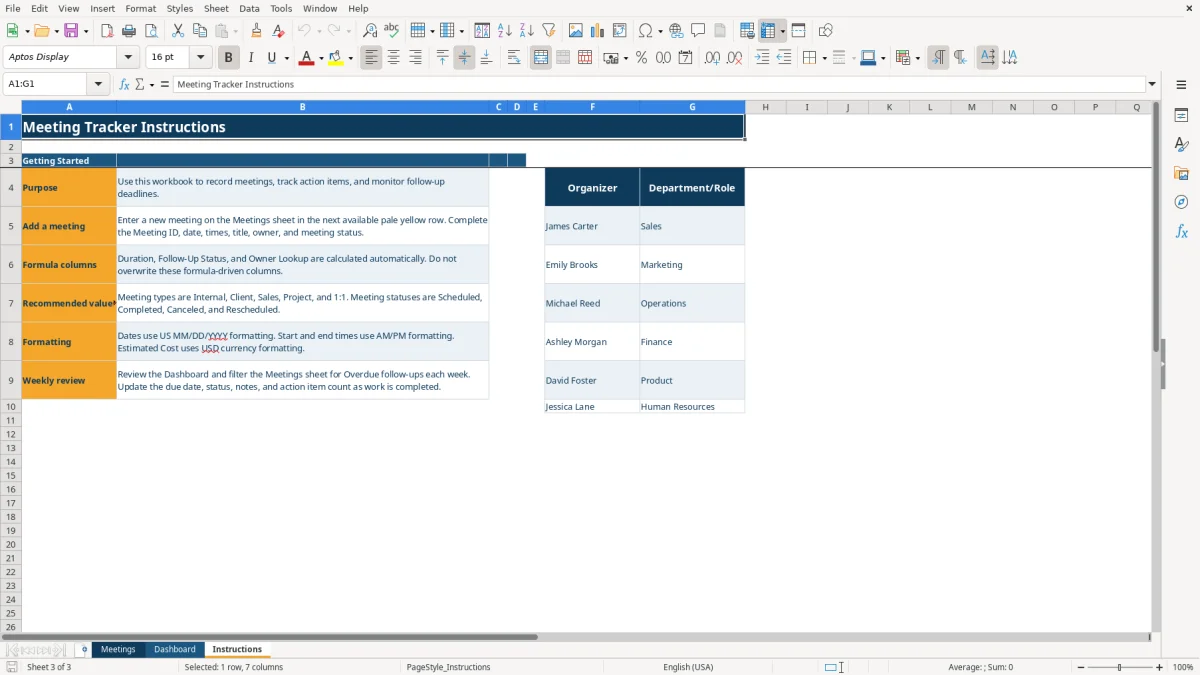
- Look up an organizer's department or role from the Instructions sheet instead of retyping it on every row.
Step-by-step guide
- Open the Instructions sheet first and review the purpose, recommended values, formatting notes, and weekly review guidance.
- Go to the Meetings sheet and enter the next available pale yellow row. Add a unique Meeting ID, date, start time, end time, title, meeting type, organizer, and meeting status.
- Complete the attendee, company or department, city, location or platform, priority, action-item count, follow-up due date, notes, and estimated cost fields when applicable.
- Leave Duration (Hours), Follow-Up Status, and Owner Lookup alone. These columns contain formulas that calculate results from your inputs and the lookup list on Instructions.
- Use the dropdowns for Meeting Type, Priority, and Meeting Status. Enter a whole number from 0 to 999 for Action Items.
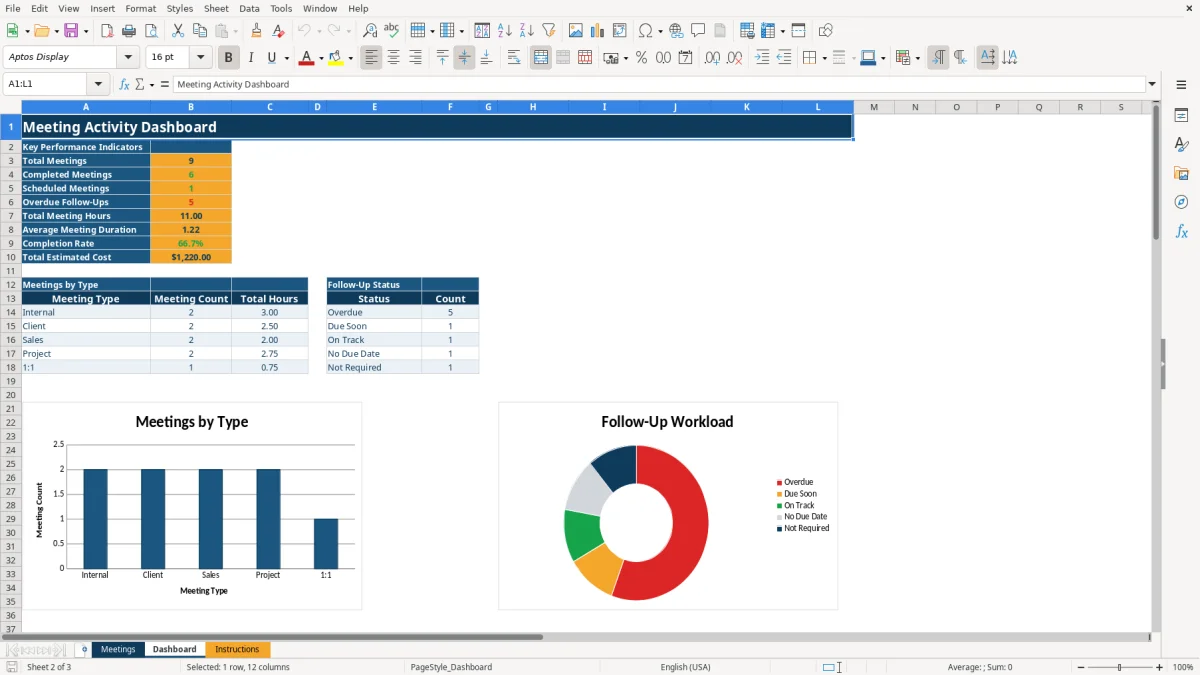
- Review the Dashboard after entering meetings. Check the key indicators, meeting-type totals, follow-up-status counts, and the two charts.
- During your weekly review, filter the Meetings sheet for overdue follow-ups and update notes, due dates, status, and action-item counts as work progresses.
What is included
Meetings sheet with fields for Meeting ID, Meeting Date, Start Time, End Time, title, type, organizer, attendee, company or department, city, platform, priority, action items, due date, status, notes, and estimated cost.
Formula-driven Duration (Hours) column using start and end times, with blank results when either time is missing.
Formula-driven Follow-Up Status that returns Overdue, Due Soon, On Track, No Due Date, or Not Required.
Owner Lookup column using VLOOKUP against the organizer and department or role list on Instructions.
Dashboard with Total Meetings, Completed Meetings, Scheduled Meetings, Overdue Follow-Ups, Total Meeting Hours, Average Meeting Duration, Completion Rate, and Total Estimated Cost.
Meetings by Type and Follow-Up Status summary areas powered by COUNTIF and SUMIF formulas.
Two Dashboard charts showing meeting counts by type and follow-up-status counts.
Who uses a meeting tracker Excel template during the workweek
A meeting tracker suits a project manager, office manager, sales coordinator, nonprofit treasurer, or bookkeeper at a small LLC that needs more than a calendar view. A calendar tells you when an appointment happened; this workbook also records the people involved, the company or department, the platform, action-item count, estimated cost, and the date when someone must follow up.
For example, an office manager at a contractor with 4 employees might record a Monday project meeting, a Wednesday client call, and a Friday internal check-in. If those meetings last 1.5, 1.0, and 0.5 hours, the Dashboard reports 3.00 total hours rather than forcing you to add the durations by hand.
Client and project work
A freelancer operating as a sole proprietorship can use Meeting Type values such as Client and Project to separate revenue-related conversations from internal planning. A client check-in with 3 action items and a 7-day follow-up date is easier to revisit when the due date sits beside the meeting notes instead of in a separate notebook.
Administrative and team coordination
An office administrator can record a meeting held in Zoom, Microsoft Teams, or a physical location, then identify the organizer and attendee by name. The sample rows show practical entries such as a client check-in in New York, a website launch review in Los Angeles, and a regional sales call in Chicago; those are populated examples, not limits on how you use the file.
The Dashboard is especially useful at the Monday operations meeting. If 20 meetings were logged, 14 completed, and 6 scheduled, a 70% completion rate gives you a quick workload snapshot before you review individual rows. The workbook has 102 prepared input rows from row 3 through row 104, so a smaller team can maintain a useful history without building a database.
How the workbook calculates meeting and follow-up metrics
The Meetings sheet uses US date and time formats: dates display as MM/DD/YYYY, times use AM/PM, and Estimated Cost uses USD currency formatting. Duration is calculated from the difference between End Time and Start Time multiplied by 24. A meeting from 10:30 AM to 12:00 PM therefore returns 1.50 hours.
Follow-Up Status is driven by the due date and Meeting Status. A completed meeting with a due date before the current date is marked Overdue; one due within the next 7 days is Due Soon; a later date is On Track. A canceled meeting returns Not Required, while a blank due date returns No Due Date.
What the Dashboard measures
The Dashboard counts meeting IDs with COUNTA, counts statuses and types with COUNTIF, adds hours and estimated costs with SUM and SUMIF, and calculates average duration with AVERAGE. Completion Rate is completed meetings divided by total meetings, with an error check that returns zero when no meetings have been entered.
Suppose you enter 10 meetings: 6 completed and 4 scheduled. The Dashboard shows a 60.0% completion rate. If their durations total 12.00 hours and estimated costs total $1,250.00, those figures appear in the KPI area without a separate calculator.
Controlled values and lookup logic
Meeting Type accepts Internal, Client, Sales, Project, or 1:1. Priority accepts High, Medium, or Low, and Meeting Status accepts Scheduled, Completed, Canceled, or Rescheduled. Action Items accepts whole numbers from 0 through 999.
Owner Lookup uses VLOOKUP to match the organizer against the six sample names on Instructions and return the listed department or role. If you use a new organizer who is not in that list, the formula returns Not Listed; add the person to the lookup list before relying on department summaries.
Where meeting records break down and the cost shows up
The first failure is usually an incomplete row. Someone enters a title and date but leaves the Meeting Status blank, so the Dashboard cannot count the appointment as Completed or Scheduled. For a team holding 25 meetings a month, even 4 uncategorized rows can make the completion report understate activity by 16%.
Time and cost records that mislead
Typing a duration instead of entering start and end times creates inconsistent numbers. A 90-minute meeting recorded once as 1.5 hours and once as 90 hours can distort a manager's workload review by $88.50 if internal time is valued at $60 per hour. Enter the actual times and let the formula calculate the decimal hours.
Estimated Cost is also easy to misuse. It is a user-entered amount, not a payroll or accounting calculation. If four employees attend a 2-hour meeting and their combined loaded hourly cost is $180, entering $360.00 is a reasonable hypothetical estimate; entering $180.00 would understate the labor cost by half.
Follow-up failures
A blank Follow-Up Due date produces No Due Date, not On Track. That distinction matters: a project meeting with 5 action items and no deadline has no measurable completion target. Conversely, leaving a canceled meeting's old due date in place does not create an overdue obligation because the formula returns Not Required when Meeting Status is Canceled.
Another common problem is overwriting calculated columns. If a user replaces the formula in row 20 with the text 1.00, future changes to the start or end time will not update duration. The same issue affects Follow-Up Status and Owner Lookup, and it can quietly persist until month-end reporting.
Finally, an organizer's spelling must match the lookup list. James Carter and James Carter with an extra trailing space are not the same lookup key. That produces Not Listed and can make department review look incomplete even though the meeting itself is valid.
How to make the meeting log part of your weekly routine
Use one fixed review point each week, preferably immediately after the final Friday meeting or before Monday planning. Open Dashboard first, note the Overdue Follow-Ups count, then return to Meetings and review the rows that need action. A 15-minute weekly habit is more reliable than trying to reconstruct 30 meetings at quarter-end.
A simple operating rhythm
- Before a meeting, enter the date, times, title, participants, type, priority, and platform.
- Immediately afterward, record the action-item count, notes, estimated cost, and Meeting Status.
- During the weekly review, assign or confirm the follow-up due date and inspect every Overdue or Due Soon result.
- At month-end, compare meeting type counts and total hours with the team's workload expectations.
Keep inputs consistent. Use the provided dropdowns instead of typing variations such as Client Call, client, and Customer. If a recurring meeting uses the same format, copy the previous row's descriptive fields, then replace the Meeting ID, date, times, participants, notes, and due date.
When to move beyond the file
This workbook is a good fit for a small team with one shared process and up to 102 prepared rows. Move to dedicated project-management or CRM software when several people need simultaneous editing, permission controls, automated reminders, recurring assignments, or a searchable history well beyond the prepared range.
Do not expand the file by typing over formula columns. If you need more rows, copy the formulas in Duration, Follow-Up Status, and Owner Lookup carefully and preserve the same column logic. For a 4-person office logging 40 meetings each month, a quarterly review is enough to catch formula or lookup issues before the activity report becomes unreliable.
Frequently asked questions about this template
The Meetings sheet records Meeting ID, date, start and end times, title, meeting type, organizer, attendee, company or department, city, location or platform, priority, action-item count, follow-up due date, meeting status, notes, estimated cost, and owner lookup.
The Duration (Hours) formula subtracts Start Time from End Time and multiplies the result by 24. A meeting from 09:00 AM to 10:00 AM returns 1.00, while 10:30 AM to 12:00 PM returns 1.50.
Overdue means a meeting has a follow-up due date earlier than the current date and is not marked Canceled. A due date within the next 7 days returns Due Soon; a later date returns On Track.
Yes. Add the organizer and their department or role to the lookup list in columns F and G on Instructions. The Owner Lookup formula uses VLOOKUP to return the matching department or role; an unmatched name returns Not Listed.
The Meeting Status dropdown contains Scheduled, Completed, Canceled, and Rescheduled. The status affects Dashboard counts and causes a canceled meeting's follow-up result to display Not Required.
The Meetings sheet contains prepared entry rows from row 3 through row 104, providing 102 rows for meeting records. If you need more, extend the formulas and formatting carefully rather than replacing the existing calculated columns with typed values.
Meet the makers