
Project & Planning


Communications Calendar Excel - Free Template
Plan campaigns, assign owners, track channels, budgets, reach and engagement with a communications calendar for small US teams.
2026-09-08
380 downloads
4.8/5
Download template
A communications calendar Excel template is a planning and measurement workbook for scheduling campaigns, assigning owners, organizing messages by channel, and recording results. This file includes 100 prepared rows with fields for dates, campaigns, audiences, budgets, reach, engagements, asset links, and notes, plus a dashboard.
Enter your work on the Communications Calendar sheet, review totals and charts on Dashboard, and use Instructions as the quick reference. The Day column calculates the weekday from Planned Date, while Engagement Rate calculates engagements divided by actual reach when both results are available.

The main benefits of this Excel template
- Plan 100 communications in prepared rows covering newsletters, webinars, social campaigns, press releases, promotions, and product updates.
- Assign every item to an owner, audience, channel, status, and priority so a small team can see responsibility without a separate task list.
- Compare Budget with Estimated Reach, Actual Reach, and Engagements to evaluate campaign performance in dollars and percentages.
- Use consistent drop-down choices for communication type, channel, status, priority, and owner instead of correcting inconsistent labels later.
- See total communications, published items, total budget, completion percentage, high-priority items, and average engagement rate on one Dashboard.
- Filter the calendar by its AutoFilter and frozen header row while reviewing a specific campaign, owner, date, or status.
- Keep campaign assets and approval context connected through Asset Link and Notes fields rather than searching through email threads.
Step-by-step guide
- Open the Instructions sheet first and review the input guidance, date format, workflow, and performance definitions.
- Go to Communications Calendar and add each activity to the next available row from rows 2 through 101. Pale-yellow cells are intended for editable inputs.
- Enter Planned Date as MM/DD/YYYY, such as 04/15/2026. The Day field fills automatically from the date.
- Complete Campaign, Communication Type, Channel, Audience, Owner, Status, and Priority using the available drop-down lists.
- Write the Subject / Headline, Key Message, Call to Action, Target Location, Asset Link, and Notes so another team member can execute the item.
- Enter Budget and Estimated Reach before launch, then add Actual Reach and Engagements after publication. Engagement Rate calculates only when both actual fields are present.
- Review Dashboard for counts, budget, completion, owner engagement, channel results, status totals, monthly planning, and budget by communication type.

What is included
Communications Calendar sheet with columns for Communication ID, Planned Date, Day, Campaign, Communication Type, Channel, Audience, Owner, Status, and Priority.
Content planning fields for Subject / Headline, Key Message, Call to Action, and Target Location.
Performance fields for Budget, Estimated Reach, Actual Reach, Engagements, and calculated Engagement Rate.
Asset Link and Notes columns for campaign files, landing pages, approvals, and execution details.
Dashboard formulas using COUNTA, COUNTIF, SUM, AVERAGE, VLOOKUP, SUMIF, and COUNTIFS.
Four Dashboard charts covering communications by channel, communications by status, planned communications by month, and budget by communication type.
Instructions sheet explaining input cells, date format, drop-down lists, the Draft-to-Completed workflow, and engagement-rate logic.
Who uses a communications calendar Excel template in the US
A communications calendar is useful when several people must publish messages without losing track of timing, ownership, or approvals. A nonprofit communications manager may coordinate a March donor email, an April press release, and weekly social posts; an office manager at a four-employee contractor may track customer notices, hiring updates, and safety communications from one list.
Small teams with many moving parts
A freelancer or marketing coordinator can use the Campaign and Communication Type columns to separate a $1,200 newsletter from a $2,100 social campaign. The sample workbook shows a January newsletter with 16,400 actual reach and 1,320 engagements, which produces an 8.05% engagement rate. That level of detail is more useful than a calendar containing only titles and dates.
For an online store sending 300 orders per month, the calendar can hold product updates, promotion emails, and customer surveys alongside the audience and call to action. The Owner field makes the handoff visible; the Asset Link gives the person publishing the message a direct route to the draft or approved creative.
When the calendar matters most
Use it during the annual campaign planning session, then update it during a weekly editorial meeting. A team with 20 planned communications in one quarter can sort by Planned Date and Status to see whether next week's announcement is still Draft or already Scheduled.
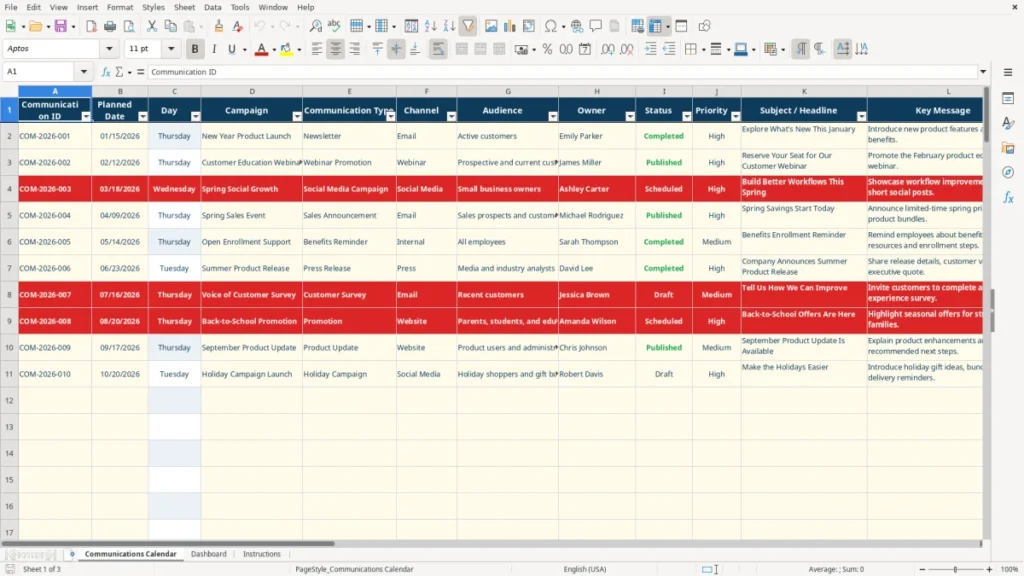
Image 1 shows the Communications Calendar layout: the date and calculated Day columns sit beside campaign details, ownership, content fields, financial inputs, performance measures, and links. The frozen top row and AutoFilter across A1:U101 make the 100-row prepared range practical for weekly review.

What the communication metrics in this workbook measure
This workbook uses operational marketing metrics rather than accounting or tax rules. Engagement Rate is calculated as Engagements divided by Actual Reach. If a campaign reaches 19,800 people and records 1,683 engagements, the result is 8.5%. The rate remains blank when either input is blank, preventing a misleading zero before results arrive.
Budget and reach are planning measures
Budget is formatted as a dollar amount, while Estimated Reach, Actual Reach, and Engagements use whole-number formats. A $1,500 webinar promotion with estimated reach of 22,000 and actual reach of 19,800 should be evaluated against its 1,683 engagements, not against estimated reach alone.
Do not treat Estimated Reach as revenue, a guaranteed audience, or a financial forecast. It is a planning field. Likewise, Dashboard's Total Budget is the sum of the Budget column, so a 10-item plan averaging $750 per item will show $7,500 even if some campaigns have not yet been approved.
Consistent categories improve reporting
The drop-down lists restrict Communication Type to defined choices such as Newsletter, Webinar Promotion, Social Media Campaign, Press Release, and Product Update. Channel choices include Email, Social Media, Website, Press, Internal, and Webinar; status choices are Draft, Scheduled, Published, and Completed.
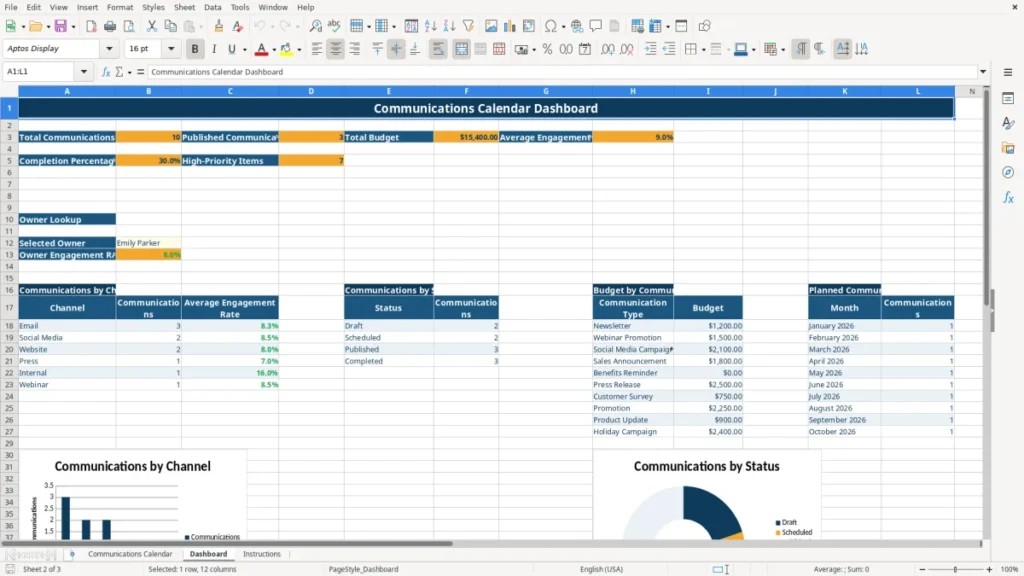
Image 2 shows the Dashboard with formulas for total communications, published communications, total budget, average engagement rate, completion percentage, and high-priority items. Its monthly count uses date boundaries beginning with January 2026, so enter real Excel dates rather than text that only looks like a date.
Where communications tracking breaks down for small teams
The first costly failure is treating a message calendar as a list of titles. If a campaign has a headline but no Key Message, Call to Action, or Audience, the writer and approver can interpret the assignment differently. A two-person team may spend an extra 90 minutes rewriting a launch email that should have been defined in one row.
Missing results distort the dashboard
Entering an estimated reach of 35,000 but leaving Actual Reach blank is correct before launch. Entering 0 instead of leaving it blank is not: it can make performance look complete while the campaign has not been measured. After launch, record both Actual Reach and Engagements; for 31,200 reach and 2,496 engagements, the correct rate is 8.0%.
A second problem is changing labels manually. Typing Social, social media, and Social Media Campaign in different rows fragments channel or type reporting. The Dashboard's COUNTIF and SUMIF formulas match the listed categories, so an unlisted spelling may not appear in the intended summary.
Late status changes create false completion
Marking a scheduled message Completed before the asset is published inflates the completion percentage. If 8 of 20 communications are genuinely completed, the dashboard should show 40%; marking two unfinished items complete raises the displayed result to 50%, a five-item-per-20-point distortion that can hide a missed deadline.
Another frequent loss is an empty Asset Link. When a campaign file lives in an email chain, the next owner may search for 15 minutes or use an outdated version. Put the direct file, landing page, press release, or approved social asset URL in the row and use Notes for approval details.
How to make the communications calendar a weekly routine
The spreadsheet works best when it is tied to an existing meeting rather than opened only when a deadline is missed. Set a 20-minute Friday review: add next week's activities, change completed statuses, enter results from recently published messages, and check every High-priority item.
Use a fixed review sequence
- Sort or filter by Planned Date and review the next 14 days.
- Filter Status to Draft and Scheduled, then confirm the owner, headline, asset link, and call to action.
- Compare Actual Reach and Engagements for published items and check whether the calculated rate is plausible.
- Open Dashboard and compare channel counts, status counts, monthly volume, and budget by communication type.
Keep the input clean by using the five available drop-down lists instead of typing categories from memory. Enter dates as MM/DD/YYYY, such as 06/12/2026, and do not overwrite calculated Day or Engagement Rate cells. If you add rows beyond the prepared 2:101 range, the existing formulas, conditional formatting, and Dashboard summaries will not automatically extend to those rows.
Know when the file is no longer enough
This workbook is a good fit for a single team managing up to 100 prepared entries and four summary views. Move to dedicated project or marketing software when several users need simultaneous editing, approval history, automated publishing, permissions, or more than 100 active rows.
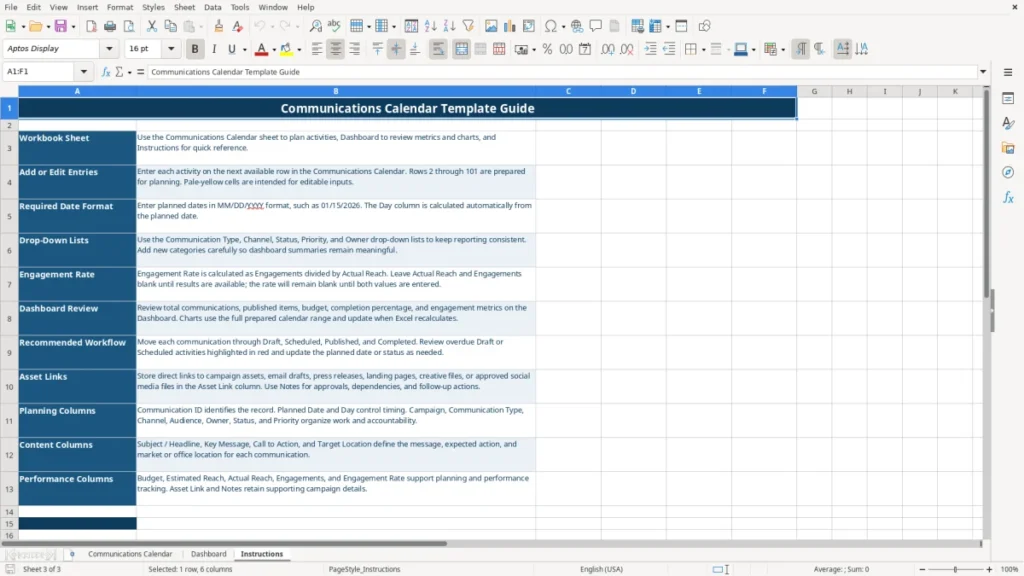
Image 3 shows the Instructions sheet, which is useful during onboarding because it explains the three-sheet workflow and the meaning of planning, content, and performance columns. Keep one person responsible for the weekly review; shared ownership without a named reviewer is how stale statuses survive for a month.
Frequently asked questions about this template
It includes Communications Calendar, Dashboard, and Instructions sheets. The calendar has 100 prepared rows and fields for dates, campaigns, channels, owners, messages, budgets, reach, engagements, asset links, and notes. Dashboard contains formulas, an owner lookup, summary tables, and four charts.
Rows 2 through 101 are prepared for 100 communications. You can add more rows manually, but the existing formulas, conditional formatting, and Dashboard calculations are prepared for the stated range and may not extend automatically.
Engagement Rate equals Engagements divided by Actual Reach. For example, 1,320 engagements divided by 16,400 actual reach equals 8.05%. The formula leaves the cell blank until both inputs are available.
Yes. The Channel drop-down includes Email, Social Media, Website, Press, Internal, and Webinar. Communication Type includes options such as Newsletter, Webinar Promotion, Social Media Campaign, Press Release, Promotion, Product Update, and Holiday Campaign.
Enter real Excel dates in MM/DD/YYYY format, such as 01/15/2026 or 06/12/2026. The Day column uses an Excel formula to display the weekday automatically.
Dashboard calculates total communications, published communications, total budget, average engagement rate, completion percentage, and high-priority items. It also provides an owner engagement lookup and summaries by channel, status, communication type, and month.
Meet the makers