
Inventory & Procurement


Vehicle Job Card Excel - Free Template
Track repair orders, vehicle details, labor, parts, tax, approvals, payments, and balances with a job card spreadsheet for auto repair shops.
2026-07-18
270 downloads
4.8/5
Download template
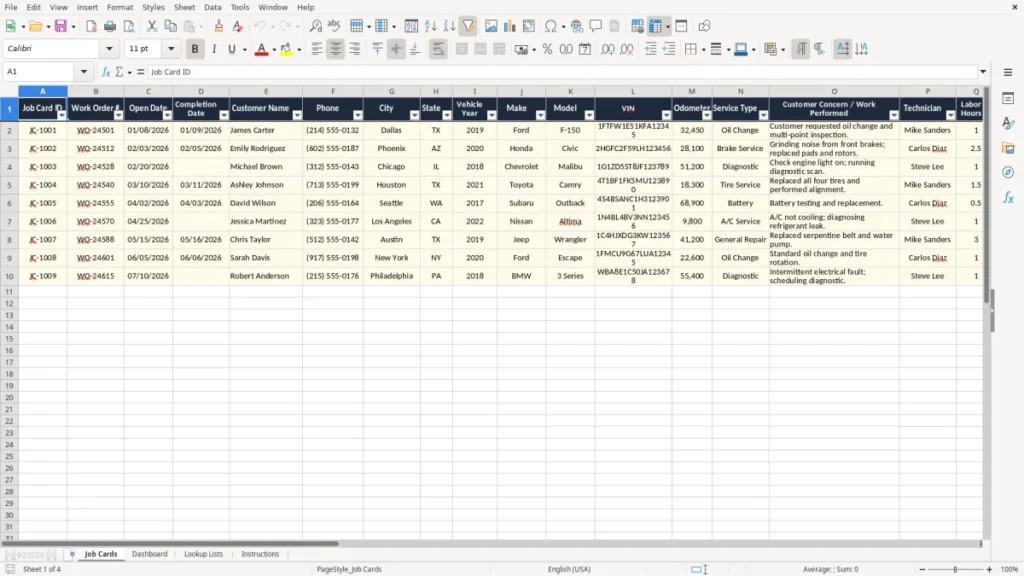
A vehicle job card Excel template records each repair order from customer concern through payment. It includes fields for the work order, vehicle identification, dates, technician, labor, parts, sales tax, approval, job status, payment status, and balance due.
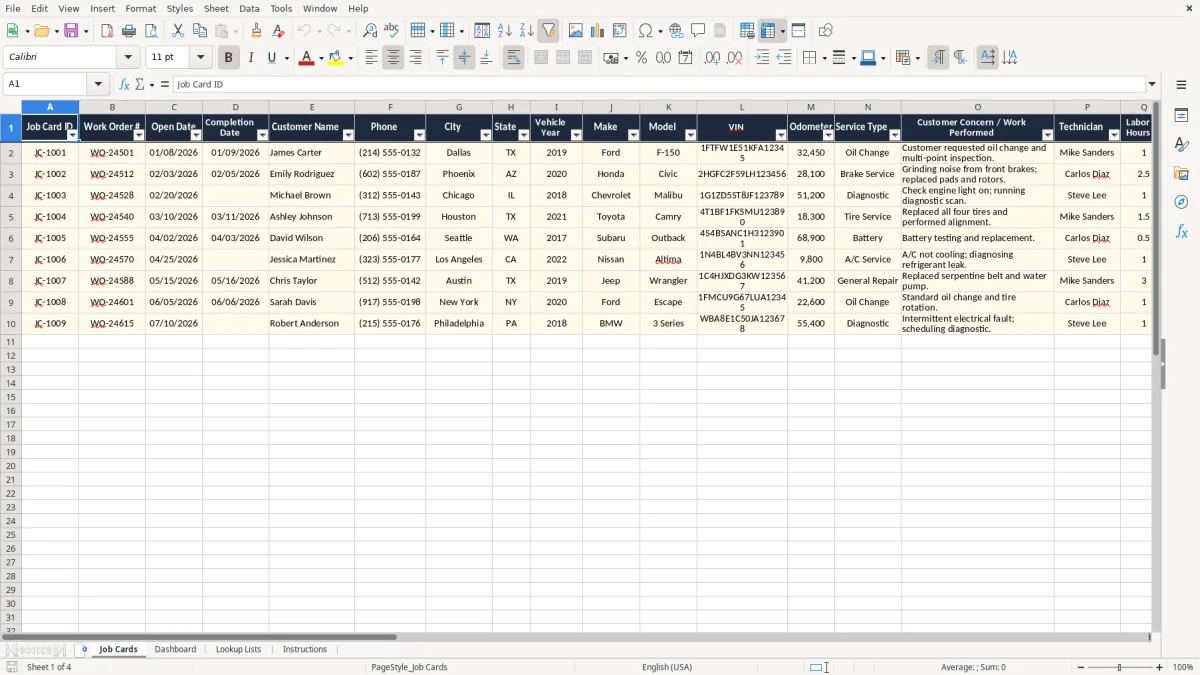
The four-sheet workbook gives you a main Job Cards register, a Dashboard for shop-level reporting, Lookup Lists for controlled entries, and Instructions for setup. Image 1 shows the wide Job Cards layout, with the customer and vehicle details on the left and pricing and status fields continuing across the sheet.
You can use one row for each work order, whether you run a two-bay repair shop, manage a dealership service department, or maintain a small commercial fleet. The yellow input cells, dark header row, currency formats, and status fields make the file practical for daily counter work.
The main benefits of this Excel template
- Keep the work order number, open date, completion date, customer, and vehicle information on one row.
- Capture the VIN, odometer reading, make, model, and vehicle year before work begins.
- Separate labor hours, labor rate, labor amount, parts cost, and shop supplies for clearer estimates.
- Calculate sales tax, total due, amount paid, and balance due without rebuilding an invoice for every repair.
- Track technician assignment, job status, payment status, and customer approval in the same register.
- Use the Dashboard to review repair activity and revenue patterns without sorting the full 30-column table.
- Create consistent entries with the Lookup Lists sheet instead of allowing different spellings for the same status or service type.
Step-by-step guide
- Open the Instructions sheet and review the workbook layout before entering live repair orders. Save a clean copy as your master file.
- Go to Job Cards and enter one row per work order. Record the Job Card ID, Work Order #, open date, customer, phone, city, and state.
- Enter the vehicle year, make, model, VIN, and odometer reading. Verify the VIN against the vehicle before you authorize parts or begin diagnosis.
- Choose the service type, describe the customer concern or work performed, and assign the technician. Add labor hours, labor rate, parts cost, shop supplies, and the applicable sales tax rate.
- Update the completion date and customer approval after the repair is authorized or finished. Use the job and payment status fields to show whether the vehicle is open, completed, paid, or still outstanding.
- Enter the amount paid and review Total Due and Balance Due before closing the ticket. Compare the row to your point-of-sale receipt or card settlement.
- Review the Dashboard weekly and use Lookup Lists when you need to add technicians, service types, or approved status choices. Protect or archive completed records after your month-end review.
What is included
Job Cards sheet with 30 labeled columns covering work order, customer, vehicle, repair, pricing, payment, and approval data.
Vehicle identification fields for year, make, model, VIN, and odometer reading.
Repair detail fields for service type, customer concern or work performed, technician, labor hours, and labor rate.
Separate Labor Amount, Parts Cost, Shop Supplies, Subtotal, Sales Tax Rate, Sales Tax, Total Due, Amount Paid, and Balance Due columns.
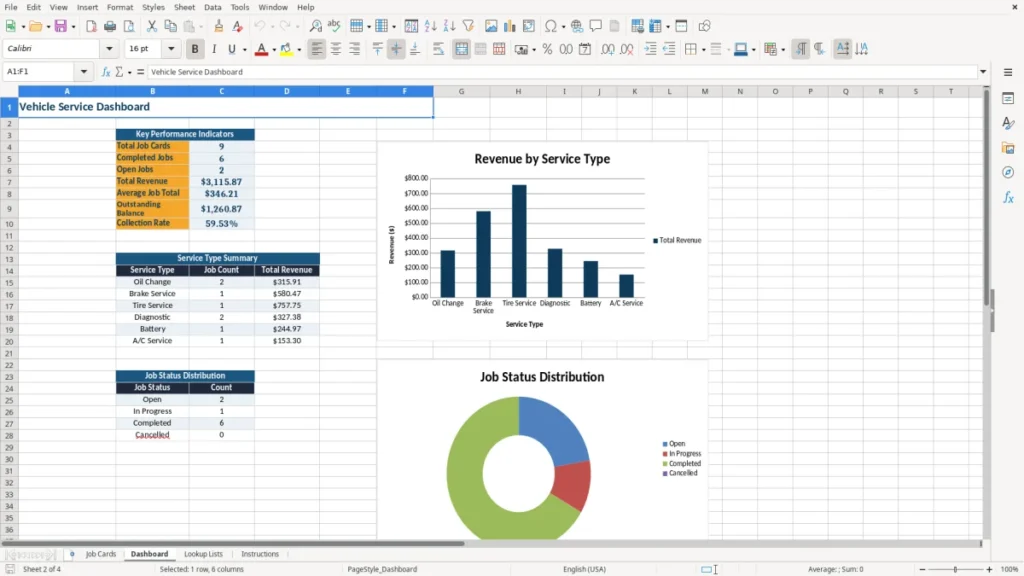
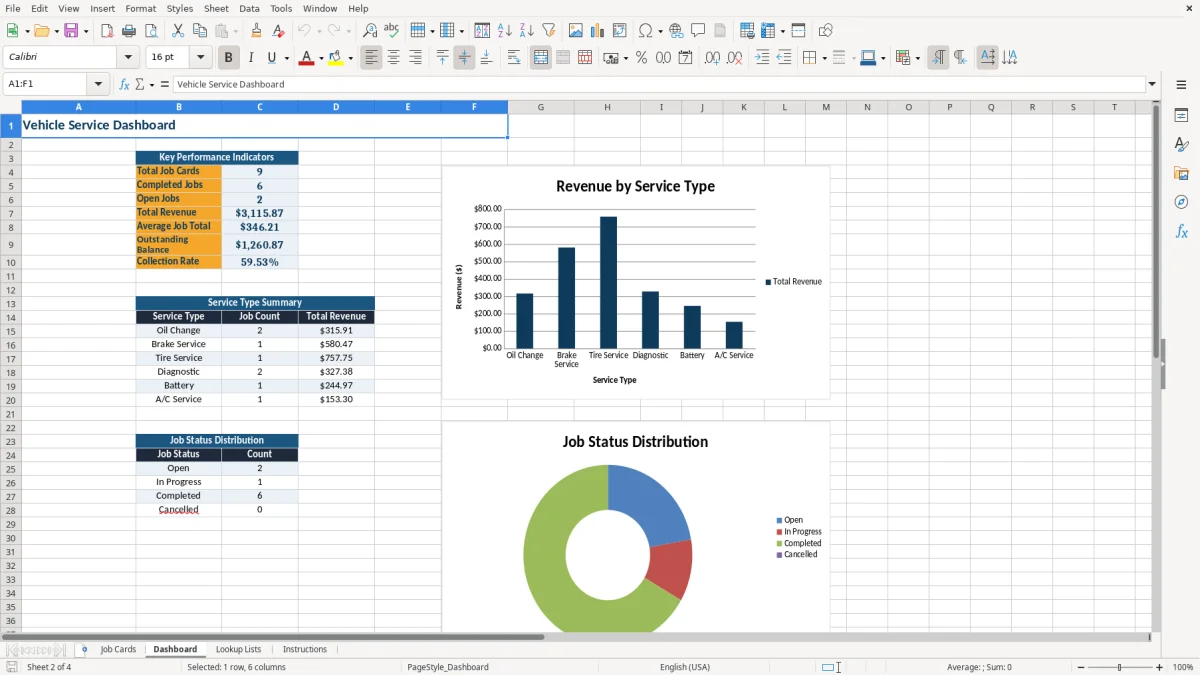
Dashboard sheet with visual summaries for reviewing job-card activity and financial performance.
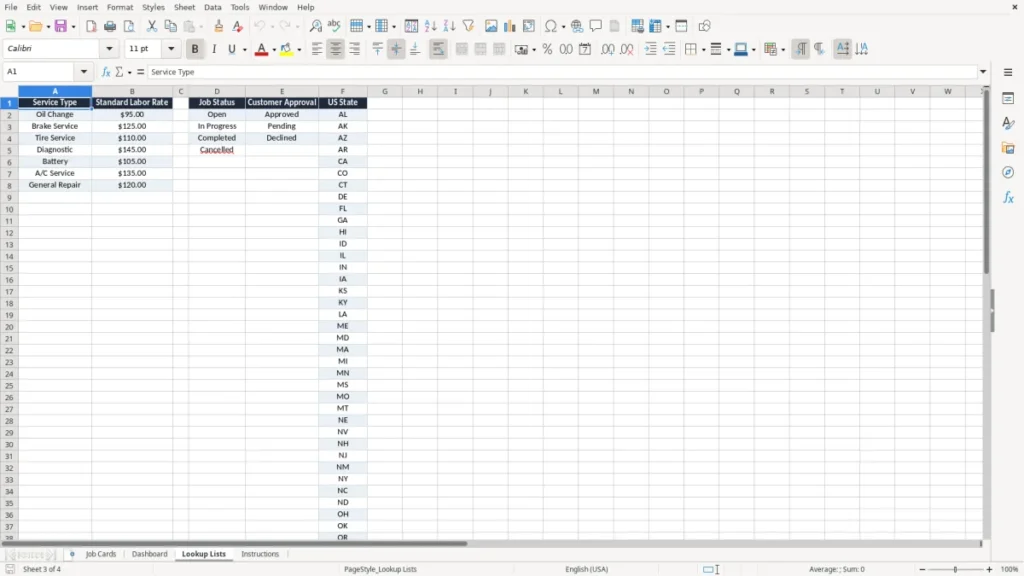
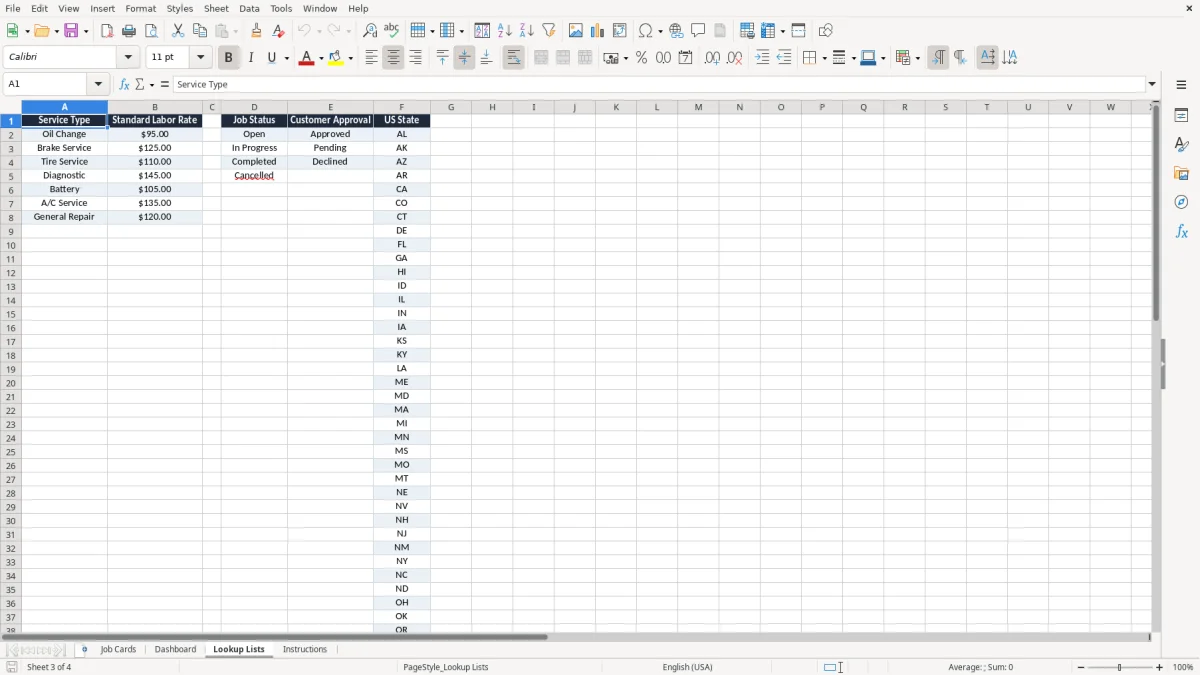
Lookup Lists sheet for maintaining standardized choices used in the workbook.
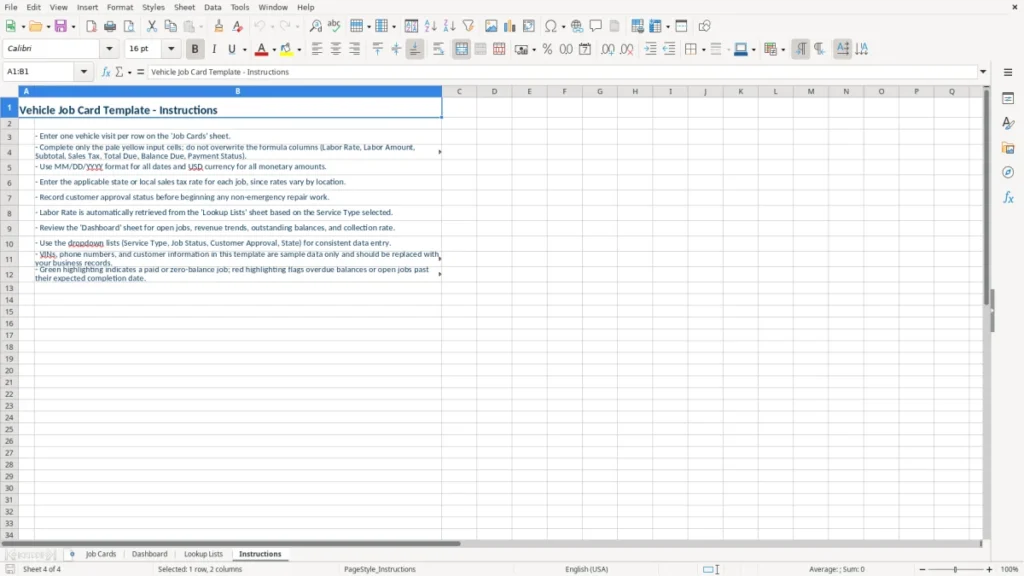
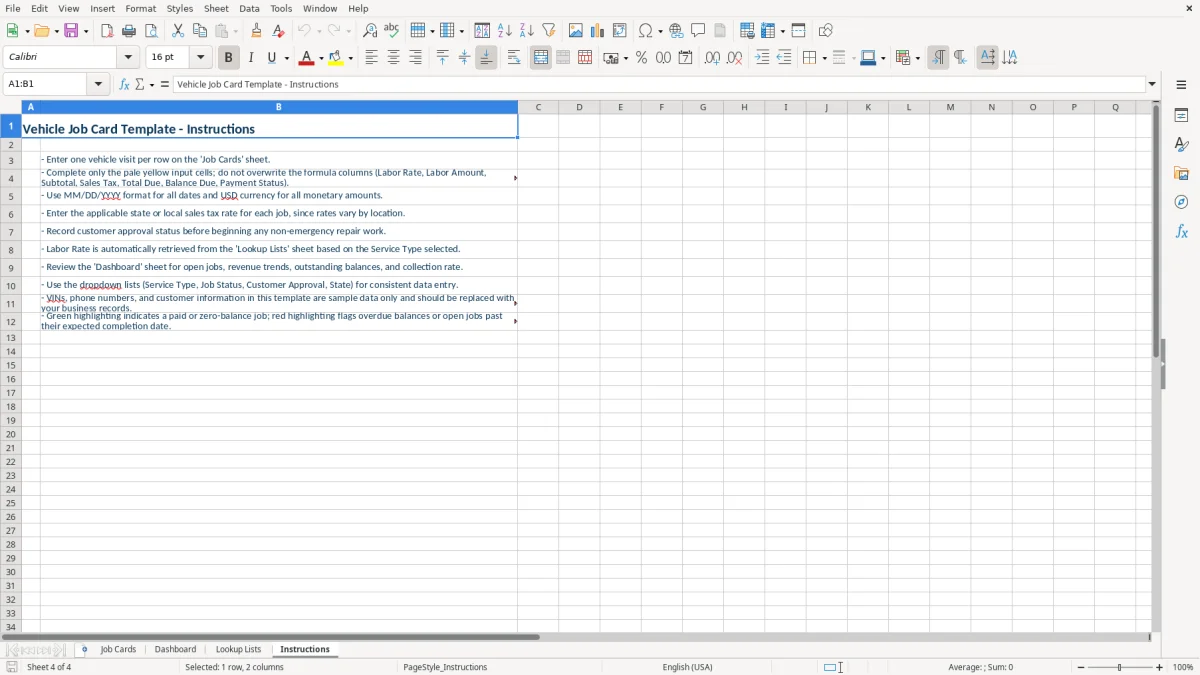
Instructions sheet plus consistent header styling, input shading, borders, date formatting, currency formatting, and status highlighting.
Who uses a vehicle job card spreadsheet during the repair cycle
The service counter starts the record
A service advisor or shop owner usually creates the job card when a customer drops off a vehicle or calls for an appointment. For a four-technician independent shop, the first entry might be Work Order # WO-26018, an open date of 07/17/2026, the customer name and phone number, and a 2026 Toyota Camry with 48,220 miles.
The Job Cards sheet keeps the customer concern beside the technical record. You can write that the customer reports a vibration above 55 mph, assign the job to a technician, and later replace that concern with the completed work, such as tire diagnosis and wheel balancing. That history is more useful than a short note on a cash receipt.
Technicians and managers need different details
The technician needs the VIN, odometer, service type, and work description. The manager needs labor hours, labor rate, parts cost, shop supplies, sales tax rate, and customer approval. Because those fields share one row, a manager can review a $1,250 brake job without opening separate estimate, repair, and payment files.
An office administrator can filter the register by technician or Job Status during the morning dispatch meeting. A fleet manager can use the same structure for company vehicles, where the customer field identifies the operating department and the odometer reading supports maintenance planning.
Close the job at pickup
At completion, enter the completion date, update the job and payment statuses, and record the amount paid. If Total Due is $1,086.40 and the customer pays $500.00 at pickup, the Balance Due should be $586.40; that outstanding amount deserves a follow-up list instead of being buried in a stack of printed tickets.
Image 2 shows the Dashboard view for reviewing the register after entry. Image 3 shows the Lookup Lists sheet, which supports consistent names and categories, while image 4 shows the Instructions sheet that explains the intended workflow.
The outstanding amount belongs on a list tracker rather than buried in printed tickets.
Sales tax and records behind a vehicle job card
Build the ticket from identifiable charges
A usable repair record should identify the seller, customer, invoice or work order number, service date, itemized labor and parts, and the tax charged. This template separates Labor Amount, Parts Cost, Shop Supplies, Subtotal, Sales Tax Rate, Sales Tax, Total Due, Amount Paid, and Balance Due so you can reconcile the ticket to your accounting system.
Sales tax is not a single federal rate. Your state and local rules determine whether repair labor, parts, shop supplies, or separately stated charges are taxable. For example, a Texas repair ticket using an 8.25% rate on a $1,000 taxable subtotal produces $82.50 of tax and a $1,082.50 total; the rate in the row must match the jurisdiction and the transaction date.
Keep the tax trail with the work order
Do not use a blank rate for every job and fix tax later in a notebook. A $2,400 transmission repair with a 7.50% applicable rate has $180.00 of tax and a $2,580.00 total. Recording the rate and amount on the job card gives your bookkeeper a traceable source for sales-tax filings and cash receipts.
States including Alaska, Delaware, Montana, New Hampshire, and Oregon do not impose a statewide sales tax, but local taxes, special rules, or customer-location requirements can still affect a transaction. A repair shop needs a written tax decision for its service area rather than copying the rate from the previous ticket.
Retention and business records
For federal tax purposes, the IRS generally expects business records to be retained for 3 years after the return is filed, with longer periods applying to some property, loss, or employment-tax records. Keep the spreadsheet with signed approvals, parts invoices, technician notes, and payment evidence; the row alone does not prove that the customer authorized a $3,000 repair.
A sole proprietorship may post repair revenue and expenses to Schedule C, while an LLC or S-corp normally uses separate books and a business bank account. This workbook is an operational register, not a substitute for the general ledger, sales-tax return, or accounting treatment for warranty work and core charges.
Where repair-shop job cards lose money and time
Vehicle identification errors become expensive comebacks
A wrong VIN or odometer entry can lead to the wrong part, the wrong maintenance recommendation, or a warranty dispute. Suppose a shop orders a $680 steering rack for the wrong model and spends 2.5 technician hours on removal before discovering the mismatch. At a $110 labor rate, the avoidable exposure is $955 before the return freight or lost bay time.
Typing the VIN from memory is not an acceptable shortcut. Match the VIN and vehicle description to the vehicle, then check the year, make, and model before assigning the part or closing the job. The template gives you separate fields for each item because one long description is difficult to search and easy to misread.
Underquoted labor hides the real margin
A common failure is entering parts cost but leaving Labor Hours or Labor Rate blank. A repair that uses 4.0 hours at $125 per hour contains $500 of labor; omitting it makes a $1,300 ticket look like a $800 parts sale and distorts the shop's gross margin.
The opposite error is entering the labor total in both Labor Amount and Subtotal. That can overcharge the customer by hundreds of dollars. Compare the row to the estimate before sending it: 3.0 hours at $120 is $360, $740 of parts, and $25 of shop supplies, producing a $1,125 subtotal before sales tax.
Unclosed balances create silent receivables
Many shops mark a vehicle Completed and assume that means Paid. A completed $2,175 repair with only $2,000 entered in Amount Paid still has a $175 receivable. If ten tickets carry that same error, $1,750 disappears from the collection list even though the work has already left the building.
Customer Approval is another point of failure. A verbal authorization without a recorded approval status can become a dispute when a customer challenges diagnostic labor or an additional $420 part. Record the approval decision and keep the signed estimate, text authorization, or email with the Job Card ID.
Finally, inconsistent entries such as Complete, Completed, and Done split dashboard counts into separate categories. Use the controlled values on Lookup Lists instead of inventing a new spelling for each technician or service writer.
How to make the job card part of your shop routine
Use fixed checkpoints instead of memory
Make the spreadsheet part of three existing events: vehicle intake, the end of the technician's shift, and the daily cash close. At intake, enter the customer and vehicle fields; when work is finished, enter completion and cost details; at closing, compare Amount Paid and Balance Due to the card terminal and cash drawer.
For a shop opening 12 work orders a day, a five-minute intake entry prevents a 60-minute reconstruction at month-end. Assign one person as the owner of the register, even if technicians supply the VIN, odometer, and work description.
Keep input clean and reviewable
- Use the Lookup Lists sheet for the approved service types, technicians, job statuses, payment statuses, and approval choices.
- Keep dates in MM/DD/YYYY format and enter currency as dollars and cents, such as $1,245.75 rather than a text note.
- Use a unique Job Card ID and Work Order #; never recycle WO-26018 for a later repair.
- Review red or highlighted status cells during the daily close and investigate any completed job with a nonzero Balance Due.
Do not overwrite a completed row to reuse it. Copy the workbook for a new reporting period or add a new row, then preserve the original record with its approval and payment history.
Know when Excel has reached its limit
This template is a good fit for a small shop with perhaps 100 to 300 active or recent job cards and one person maintaining the file. It becomes the wrong tool when several employees need simultaneous edits, parts inventory must be reserved in real time, technicians need mobile access, or you require integrated payments, VIN decoding, customer texting, and automated accounting entries.
Before moving to shop-management software, use the Dashboard to identify what you actually need: appointment scheduling, parts purchasing, labor profitability, or receivables. A clear 30-column register makes that requirements list more reliable than buying a system because a salesperson showed a colorful screen.
Frequently asked questions about this template
The workbook contains Job Cards, Dashboard, Lookup Lists, and Instructions sheets. Job Cards includes fields for work order details, customer and vehicle information, VIN, odometer, service type, technician, labor, parts, shop supplies, sales tax, approval, payment, and balance due.
Use one row for each work order. Enter the Job Card ID, Work Order #, dates, customer, vehicle, repair description, technician, labor and parts amounts, applicable sales tax rate, customer approval, and payment information. Do not place two vehicles or two unrelated repairs in one row.
It provides separate columns for Subtotal, Sales Tax Rate, Sales Tax, Total Due, Amount Paid, and Balance Due. Enter the rate that applies to the transaction in your jurisdiction, then verify the calculated figures against your point-of-sale receipt and sales-tax records.
Yes. Use Customer Name for the company or department, and record the vehicle year, make, model, VIN, and odometer on each work order. The odometer field helps you review service history and schedule the next maintenance interval.
Use the Lookup Lists sheet to maintain the approved choices for job status, payment status, service type, technicians, and customer approval. Consistent values keep Dashboard summaries accurate and prevent separate counts for entries such as Complete and Completed.
Excel is practical for a small shop with a manageable number of job cards and one file owner. Consider dedicated software when multiple users need simultaneous access, you need live parts inventory, integrated payments, appointment scheduling, mobile technician notes, customer messaging, or automatic accounting synchronization.
Meet the makers